CSWE Accreditation Command Center — User Manual
Bayshore State University School of Social Work (Port Meridian) — fictional demonstration institution · CSWE 2022 EPAS continuous readiness · Manual version 1.3
This manual opens with a 15-minute demo walkthrough that a program director can follow without any preparation. After it come three parts. Part A is a ten-minute quick start for faculty who contribute tasks and evidence. Part B is for the people who keep the program continuously ready and write the self-study — brief owners, the accreditation lead and reviewers. Part C is for administrators who set up the system, manage users, connect document sources, import records and manage CSWE guide versions. A glossary and a troubleshooting section close the manual.
Everything in the demonstration installation belongs to Bayshore State University (BSU), a fictional public university in the fictional city of Port Meridian, with a BSW and an MSW program. All people, documents, addresses and numbers are synthetic; nothing refers to a real institution.
One idea runs through everything: every screen is a different view of the same record. A task links to a CSWE requirement; the requirement has an Accreditation Brief; the brief holds our claims, the evidence behind them, the narrative and the decisions that shaped it. Wherever you are, you can click through to the rest of the chain.
A note on wording. The Command Center reports Internal Accreditation Readiness, a planning measure computed from our own records. It never states that the program is "compliant" — only the CSWE Board of Accreditation determines compliance. Please keep that distinction in anything you write from the system.
Demo walkthrough (15 minutes)
This tour is written for a program director who has never seen the Command Center. It uses the fictional Bayshore State University demonstration data, so nothing you click can affect a real program. Follow the steps in order; each one says what to click and what to notice. Times are approximate.
Before you start. You need the address of the demonstration (the link you were given, or http://localhost:3000 on a personal install) and the demo password. On a personal install the password is accredit2026 unless DEMO_PASSWORD in .env says otherwise; for the hosted demonstration, use the password that came with the link. A desktop or laptop browser works best.
Step 1 · Sign in as the accreditation lead (1 minute)
- Open the address. On the sign-in page, enter
admin.demo@example.eduand the demo password, then click Sign in. - You are now Jordan Reyes, a fictional accreditation administrator and lead. The DEMO badge beside records is a reminder that everything is synthetic.
Step 2 · Accreditation Home: what needs our attention now? (3 minutes)
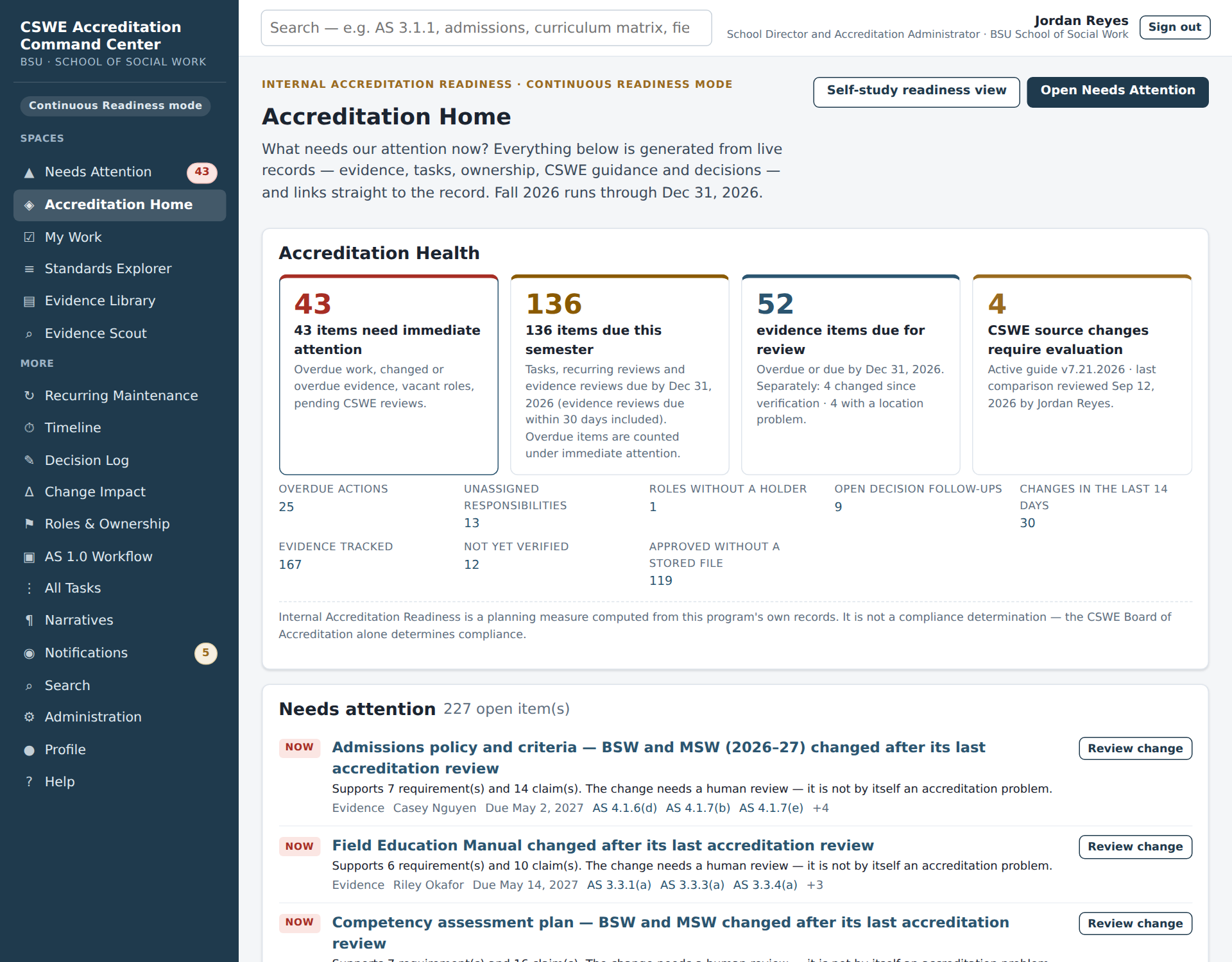
- You land on Accreditation Home in Continuous Readiness mode, which is the normal state between self-studies. Every CSWE EPAS standard is active.
- Read the four Accreditation Health tiles from left to right: items needing immediate attention, items due this semester, evidence due for review, and CSWE source changes waiting for evaluation.
- Scroll to Needs attention. Each row is generated from a live record (a changed document, an overdue review, a decision follow-up) and has a button that opens that record. Nobody typed these alerts. When the record is fixed, the row disappears.
- Scroll to Readiness trend. Each column is one week over the last 26 weeks, split into Ready, In Progress, At Risk and Not Started requirements. This is the "are we moving in the right direction?" picture most faculty want.
- Find Recent decisions & outcomes. This panel shows what the team has decided lately, without anyone opening the task tracker.
What to notice: the page says "Internal Accreditation Readiness … a planning measure". The Command Center helps the program plan its work; the CSWE Board of Accreditation alone determines compliance.
Step 3 · Needs Attention: the maintenance inbox (2 minutes)
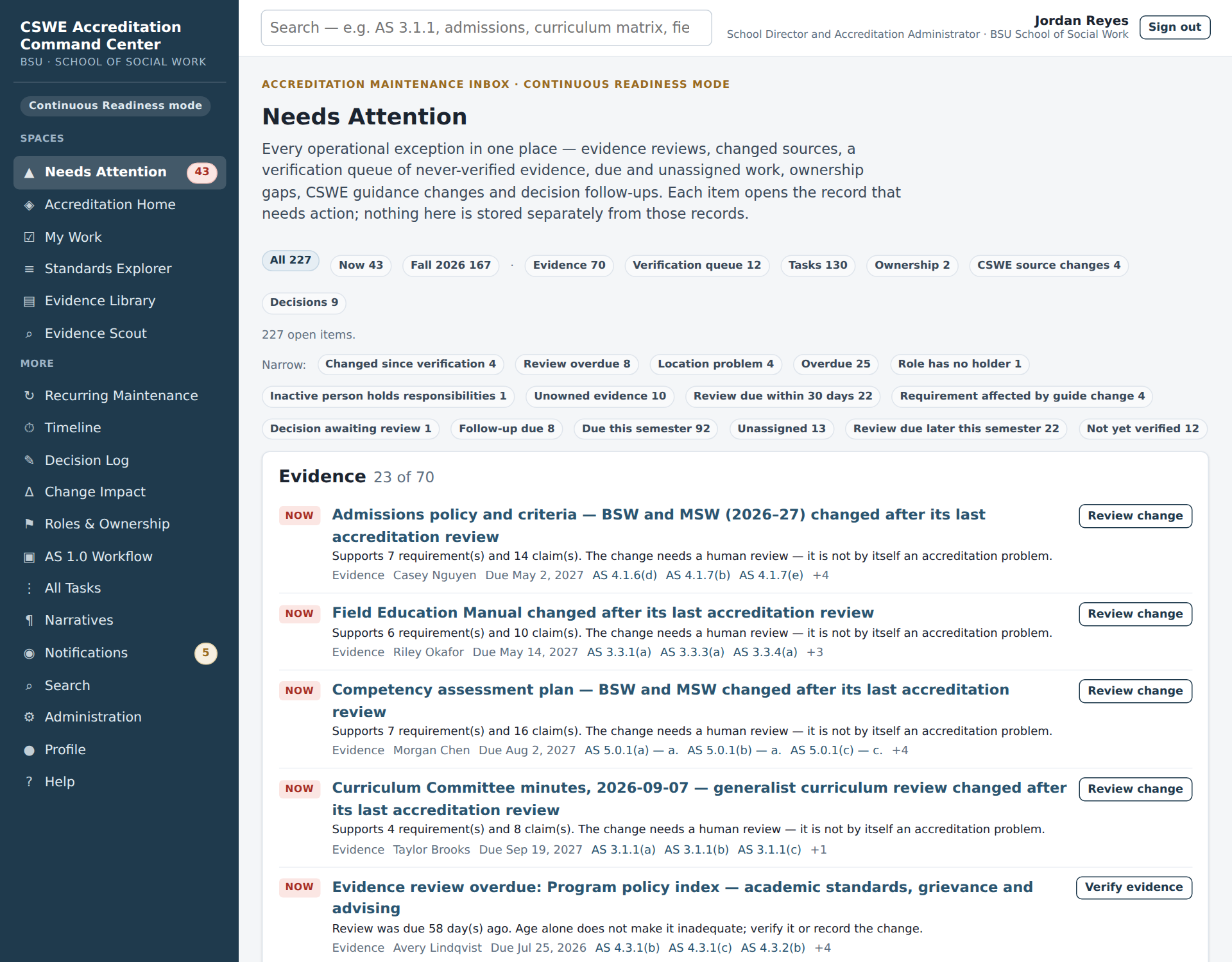
- Click Open Needs Attention at the top of Home (or Needs Attention in the sidebar).
- Use the filter chips: Now for urgent items, the current semester (for example Fall 2026), then Evidence, Verification queue, Tasks, Ownership, CSWE source changes and Decisions.
- Click Evidence. The top items read "… changed after its last accreditation review". Each one says how many requirements and claims depend on the document. A change needs a person to review it; it is not by itself a problem.
Step 4 · One requirement, one workspace: the Accreditation Brief (3 minutes)
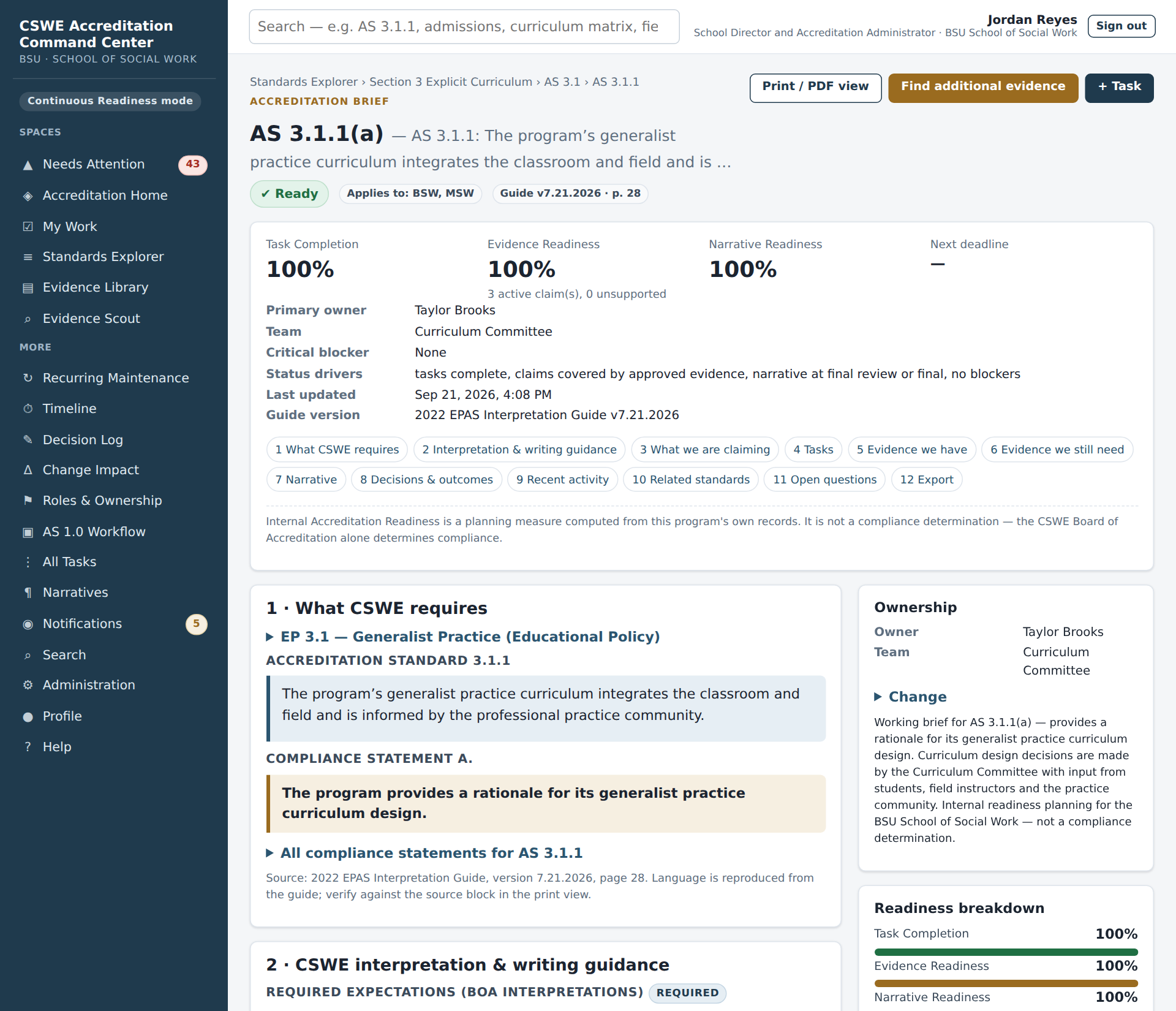
- Click Standards Explorer in the sidebar, type
3.1.1in the search box and open AS 3.1.1(a) (the rationale for the generalist practice curriculum design). You can also type the code into the search box at the top of any page. - At the top of the brief are the three readiness percentages (Task Completion, Evidence Readiness, Narrative Readiness). They are shown separately and never combined into one number.
- Use the numbered chips to jump between sections: 1 What CSWE requires (the exact guide language with its page), 2 Interpretation & writing guidance, 3 What we are claiming, 5 Evidence we have, 7 Narrative and 8 Decisions & outcomes.
- This is the page a narrative author works from. The CSWE language, the program's claims, the approved evidence and the decisions behind them are all here, one click from each source file.
Step 5 · The Evidence Vault: the exact file behind a claim (2 minutes)
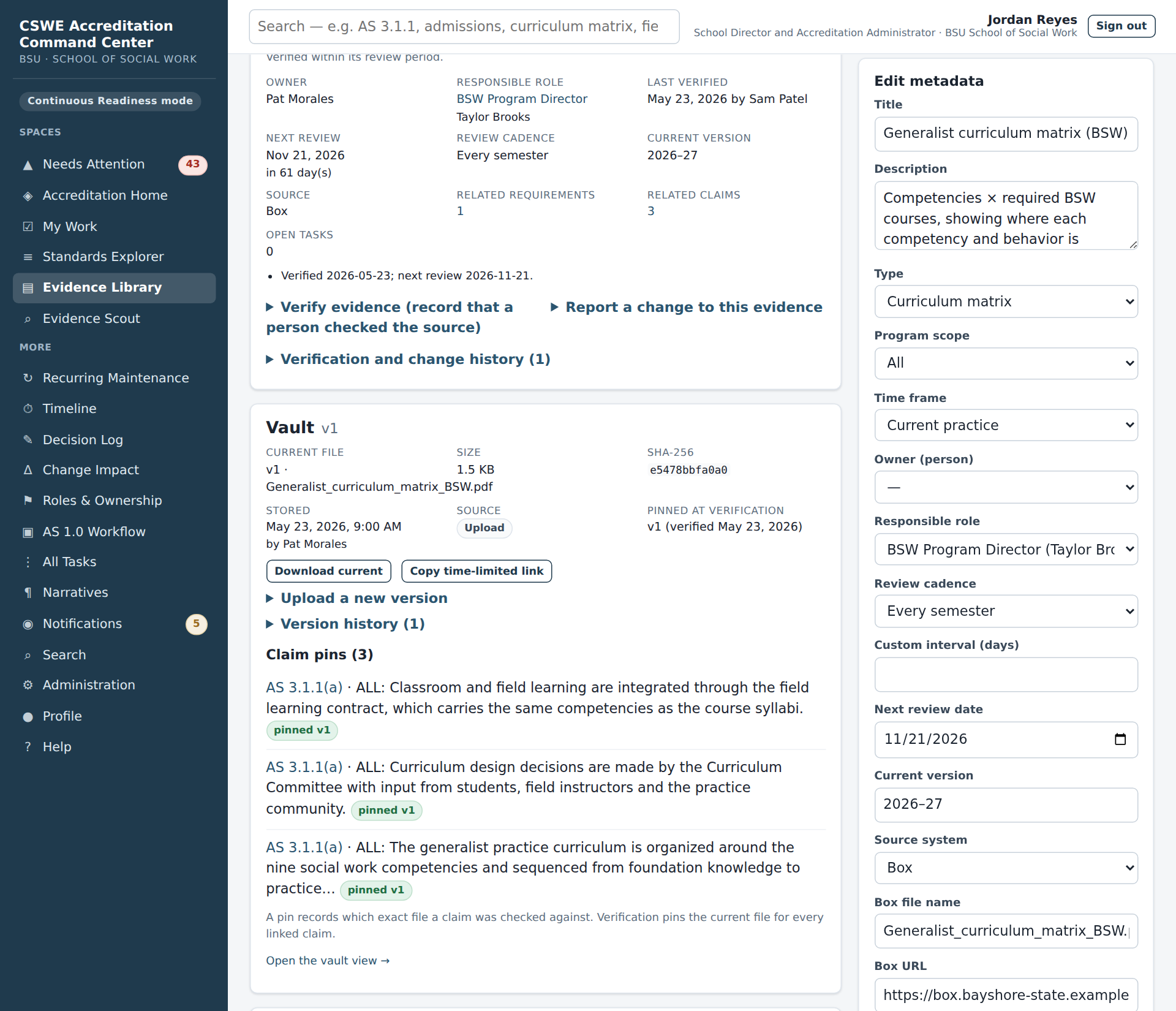
- In the brief's Evidence we have section, open Generalist curriculum matrix (BSW) (code E-0031). If you cannot find it, search for
curriculum matrixin the Evidence Library. - The Evidence health panel shows the stewardship state (Current), who verified it and when, and the next review date.
- The Vault panel shows the file the Command Center keeps: the current version (v1, or a later one if someone already ran Step 6), its size, the first characters of its SHA-256 fingerprint, and the version pinned at verification. Claim pins lists every claim that was checked against that exact file.
- Click Download current to open the (synthetic) PDF. Box or another shared drive can stay where people work. The vault keeps its own copy of each version, so the evidence cannot change without anyone noticing.
Step 6 · Watch a source change arrive (3 minutes)
This step changes the demonstration data, which is fine in a demonstration. If someone has already run it, the curriculum matrix simply gets one more version (the demo connector counts revisions r1, r2 …) and every step still works.
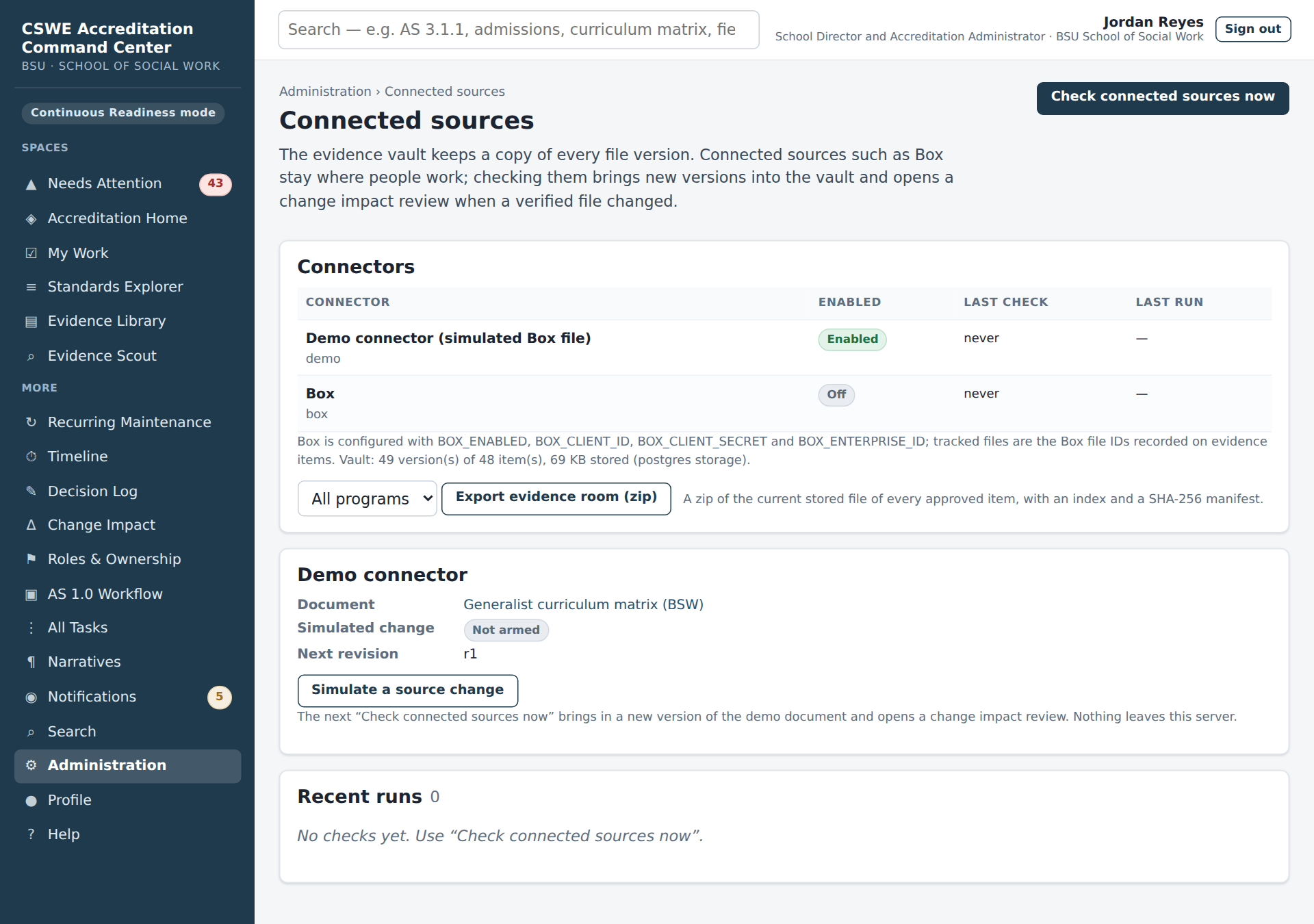
- Click Administration in the sidebar, then the Connected sources tab.
- In the Demo connector box, click Simulate a source change. This pretends someone edited the curriculum matrix in Box.
- Click Check connected sources now. Under Recent runs, the check reports one change and one new version.
- Go back to Generalist curriculum matrix (BSW) (browser Back, or search
E-0031). The item now shows a new current version (v2 on a fresh demonstration), still pinned at verification to the earlier one, and the health state Changed Since Review. The fingerprints differ, so the Command Center knows the bytes changed. The modified date alone would not tell it that. - Click Review change (or open Change Impact in the sidebar). The review lists every requirement, claim, task, narrative and brief that depends on the document. Choose an Outcome (for example No accreditation impact — claims and relationships still hold), write a short Reviewer summary, leave Also update evidence verification ticked and click Record review. The item returns to Current, and v2 is now the pinned version.
What to notice: the software found every dependency; a person decided what the change means, and the decision is in the audit trail.
Step 7 · What a faculty member sees (1 minute)
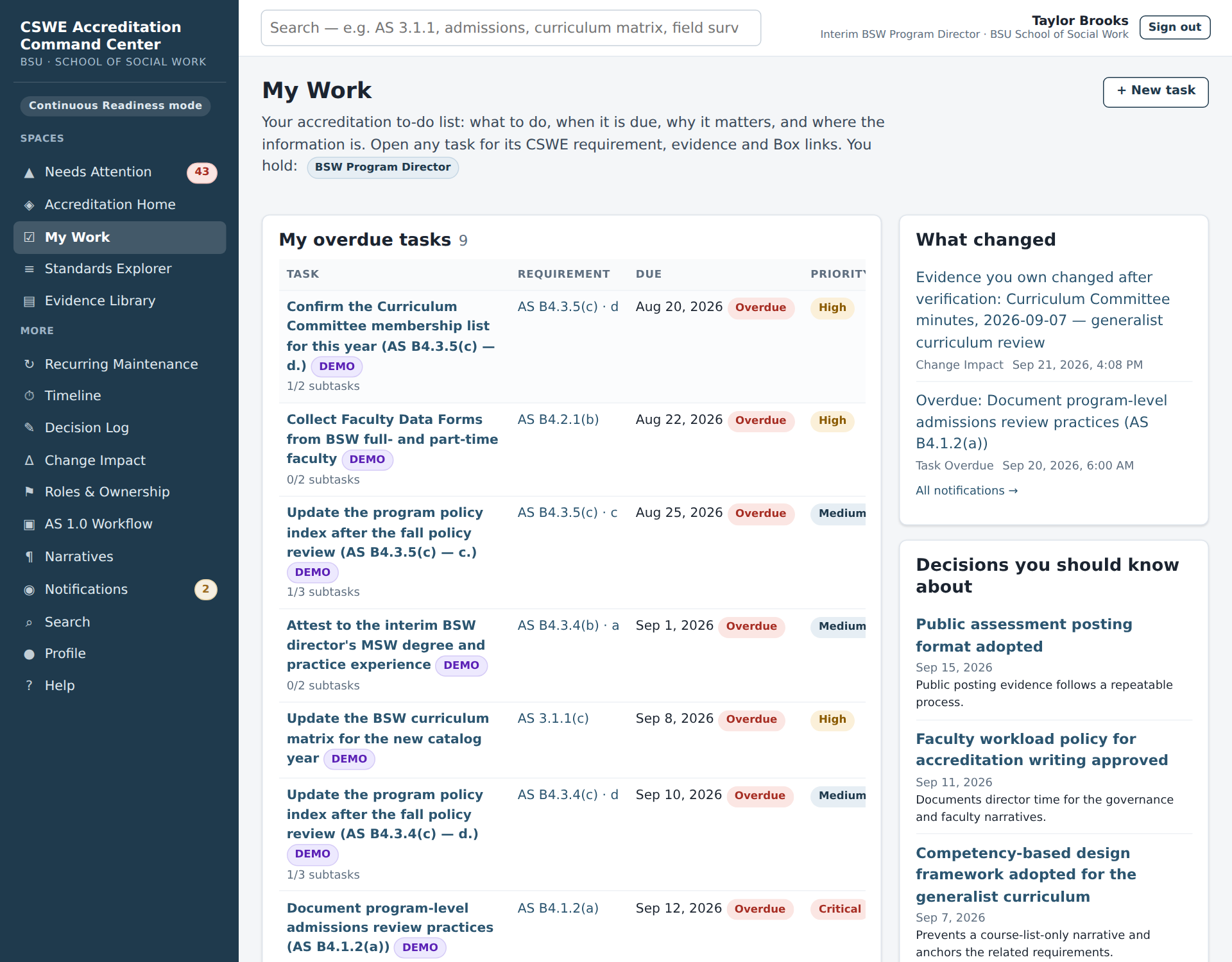
- Click Sign out (under your name in the sidebar). Sign in again as
bsw.faculty.demo@example.edu(Taylor Brooks, a fictional BSW faculty member and interim program director) with the same password. - Taylor lands on My Work: overdue tasks, due this week, due in the next 30 days, waiting and blocked items. Each row names the CSWE requirement it supports. Open any task to see why it matters, the exact requirement, the evidence and Box links, and who else is involved.
- Notice what is missing: no Administration menu, and no approval buttons on evidence. Permissions follow each person's role.
Where to go next. Faculty contributors continue with Part A. Writers and reviewers continue with Part B. Anyone setting up a real installation continues with Part C, starting with C7 on replacing the demonstration identity.
Part A · Quick start for faculty contributors
A1. Signing in
Open the address your accreditation lead gave you (on a personal install this is http://localhost: followed by the port shown when the server starts — 3000 unless PORT is set in .env). Enter your email address and password and click Sign in.
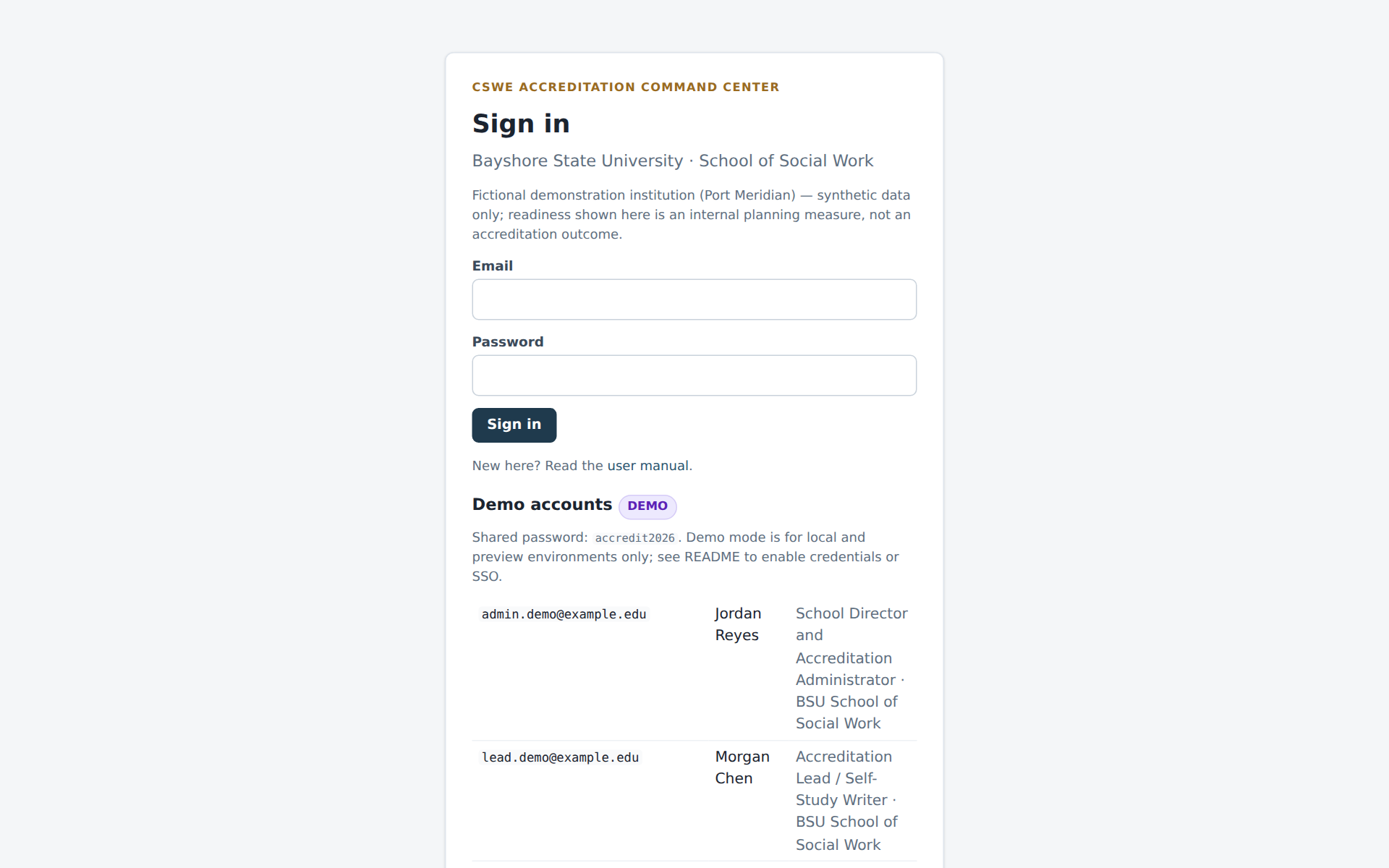
While the system runs in demonstration mode, accounts are shared demo accounts with one shared password (accredit2026 on a personal install unless DEMO_PASSWORD is set; the hosted demonstration uses the password that came with its link). They are clearly labelled DEMO; nothing you do with them affects real records anywhere — the whole dataset is synthetic.
| Demo account | Role | What you land on |
|---|---|---|
| admin.demo@example.edu | Accreditation Administrator + Lead | Accreditation Home |
| lead.demo@example.edu | Accreditation Lead, Narrative Reviewer | Accreditation Home |
| bsw.faculty.demo@example.edu | Faculty Contributor (BSW) | My Work |
| msw.faculty.demo@example.edu | Faculty Contributor (MSW) | My Work |
| field.demo@example.edu | Field Education Director | My Work |
| reviewer.demo@example.edu | Evidence Reviewer | Evidence Library |
| dean.demo@example.edu | Faculty Contributor (Associate Dean; owns AS 4.4 Resources) | My Work |
| readonly.demo@example.edu | Read Only (holds no responsibilities; for viewing only) | Accreditation Home |
A2. My Work — your accreditation to-do list
Faculty contributors land on My Work. It answers four questions: what do I need to do, when is it due, why does it matter, and where is the information I need.
The page is organised by urgency: My overdue tasks, Due this week, Due in the next 30 days, then Ready for my review, Waiting (tasks that depend on someone else), Blocked and everything else you own. The right-hand column shows What changed (notifications addressed to you) and Decisions you should know about (recent decisions touching your requirements). Each task row shows the CSWE requirement it supports, the due date, priority and status. Click a task title to open it.
A3. Working on a task
A task page is built so you never have to hunt for context.
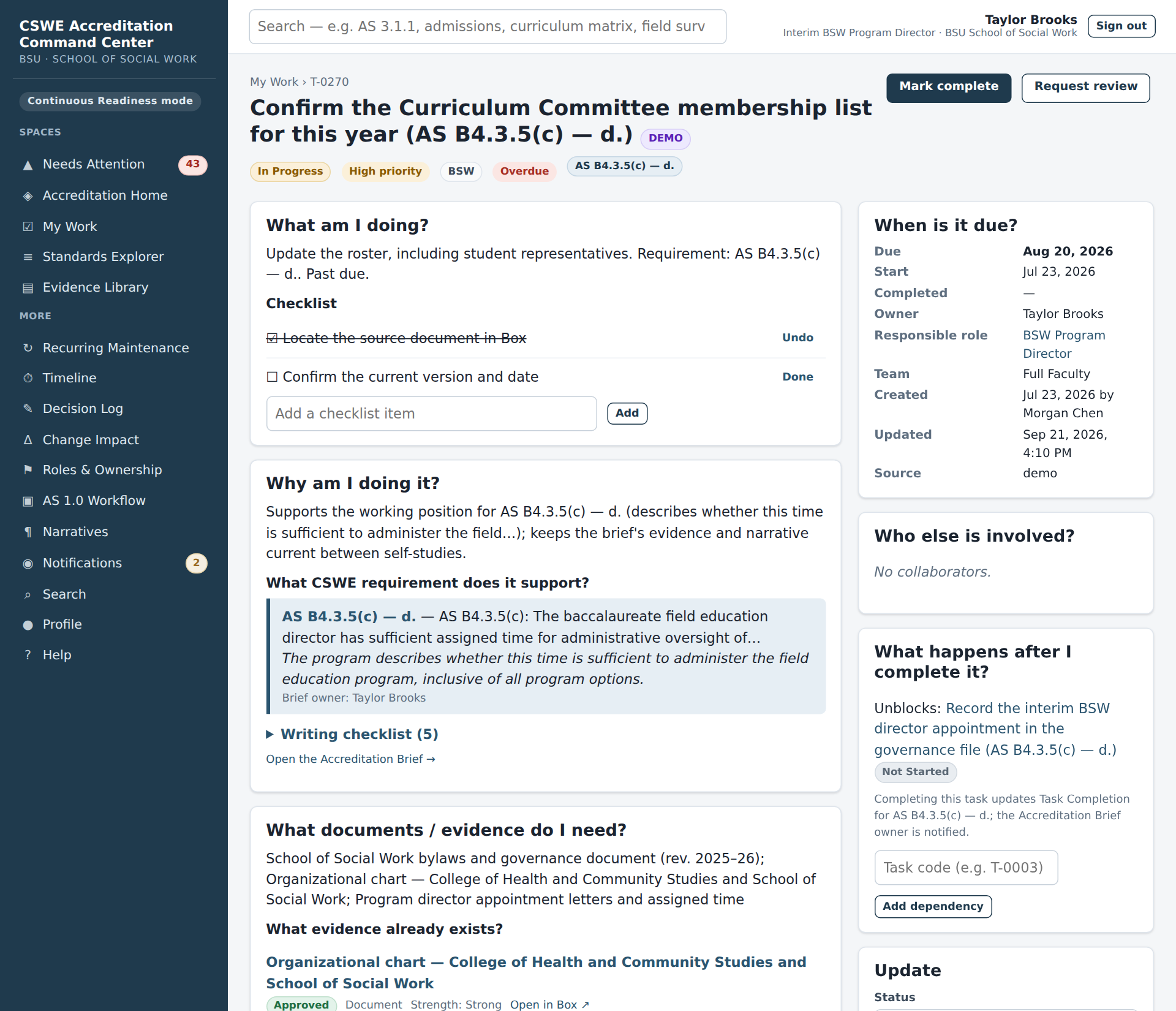
- What am I doing? — the description and a checklist of subtasks. Tick items off as you go (Done) or add your own.
- Why am I doing it? — why the task matters and its narrative impact, followed by What CSWE requirement does it support? with the exact compliance statement from the Interpretation Guide. The BOA interpretation panel expands to show what the Board of Accreditation looks for.
- Where is the information? — evidence already linked to the task and to its requirement, with Box links, plus Box resources — links attached to the task. Add one with the Add link form.
- When is it due? — due, start and completion dates, owner and team.
- Who else is involved? — collaborators; What happens after I complete it? — dependencies and what completing the task unblocks.
- Update — change status, priority, due date or add a comment. Comments are visible to everyone on the task.
When your work is done, click Mark complete (or Request review if a reviewer must confirm it). Completing a task updates the task-completion score of its requirement and notifies the brief owner. Everything you change is recorded in the task's history.
A4. Finding the CSWE requirement behind a task
Click the requirement code (for example AS 3.1.1(a)) anywhere it appears to open its Accreditation Brief — the single workspace for that requirement, described in Part B. Even if you are not the author, the brief is the best place to read what CSWE asks for, what the program is claiming and what evidence exists.
A5. Finding documents
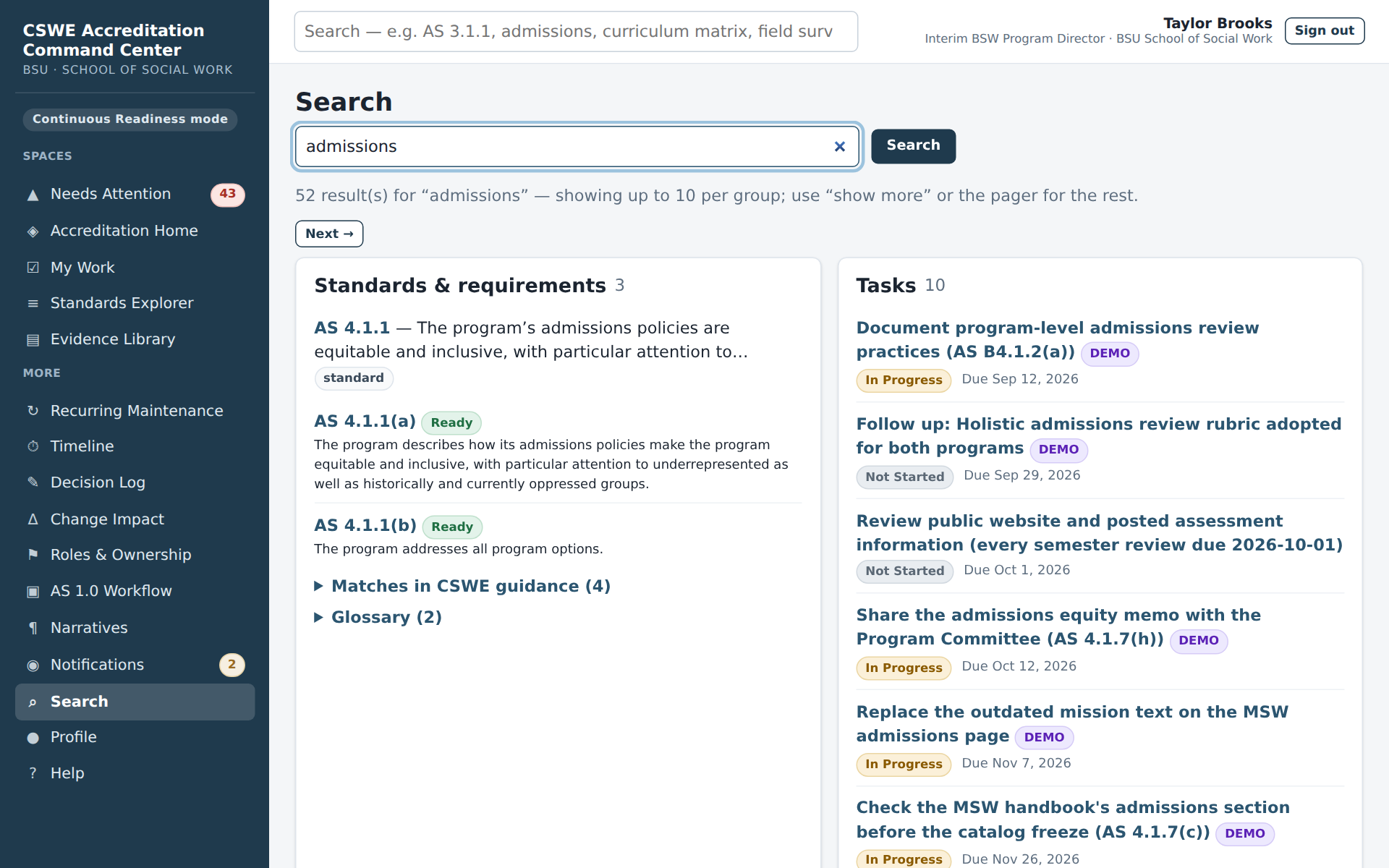
- Search (the box at the top of every page) finds tasks, requirements, evidence, narratives and decisions. Try a standard code (
AS 3.1.1), a topic (admissions) or a document name (field survey).
- Evidence Library lists every evidence item with its Box location, owner, approval status and the requirements and claims it supports. Approved items are the ones a narrative may cite.
- The Evidence Vault is the file panel on each evidence record. It keeps a copy of every version of the document that someone uploaded or a connected source (such as Box) brought in. Click Download current for the latest file. If you own an item, you can add a newer file with Upload a new version. Box and shared drives can stay where you work day to day; the vault keeps the exact version each claim was checked against (see B5a).
A6. Staying informed
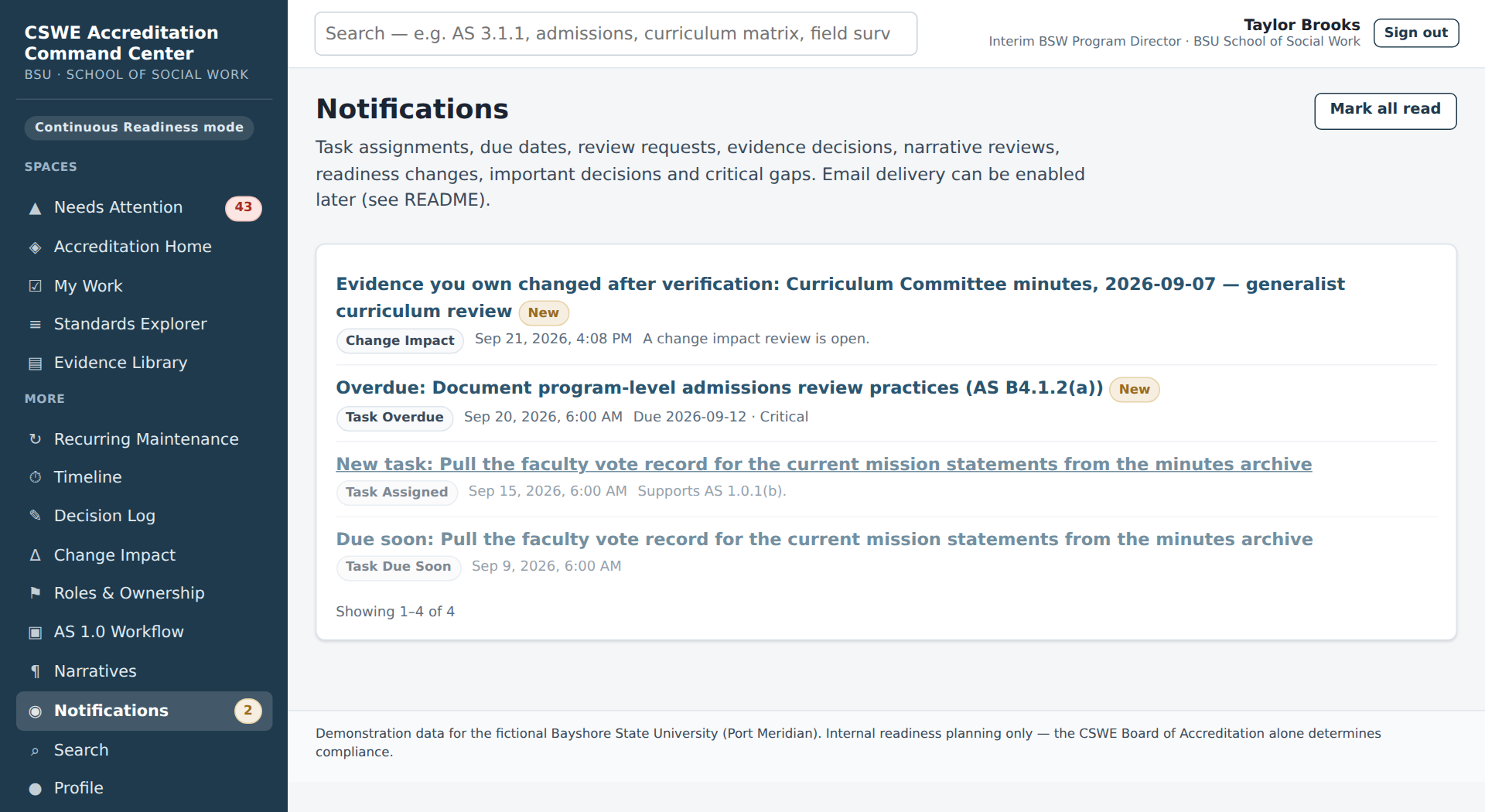
Notifications shows assignments, approaching due dates, evidence decisions and decisions affecting your work; the badge in the sidebar counts unread items.
Timeline shows the milestones (site visit, submission deadlines, internal review rounds) as a list, calendar, timeline or Gantt chart. Decision Log records decisions made by the team so nobody has to ask "did we decide this already?".
A7. Etiquette
- Keep task comments factual and short; they become part of the record.
- Do not paste confidential student data into tasks, comments or narratives. Link to the Box file instead and mark the evidence item's sensitivity.
- If a task is wrong or no longer needed, set its status to Deferred with a comment rather than deleting anything — deferred tasks are excluded from readiness scores.
Part B · Writers, brief owners and reviewers
B00. Continuous Readiness is the running state; the AS 1.0 Workflow is an optional workspace
The Command Center runs in Continuous Readiness mode by default: every CSWE EPAS standard is active, every space in the sidebar is reachable, and Accreditation Home answers "what needs our attention now?" from live records (see B0). Nothing is gated behind a prototype banner.
The AS 1.0 Workflow (sidebar → More) is a secondary, stage-based workspace for AS 1.0 — Program Mission. It walks one standard through ten lifecycle stages for the BSW and MSW programs and is useful when the team wants to rehearse the interpret → claim → verify sequence on a single requirement. Only Stage 1 (Interpret & Scope) and Stage 2 (Define Claims) are interactive. Stage 1 shows the official CSWE requirement (Educational Policy 1.0, the standard, each compliance statement with its structured elements, BOA interpretation, checklist, definitions and tips, each marked Official CSWE Source with version and page), then the program's working mission record. Every source-related item carries a status — Official CSWE Source, Official Published Source, Imported Workbook Record, Source-Grounded Hypothesis, Inferred, Unverified, Not Located, Human Review Required, Demo Path — with an explanation on hover. In the demonstration data the BSW mission is a provisional working statement and the MSW mission is "located in the current handbook but not yet imported", so the verification steps can be exercised. Formal approval dates stay blank until verified. An Accreditation Lead or Administrator records them in Edit working mission record (audited): formal approval status, approval date, effective date and the approval source (where the approval is documented; required whenever a date is entered or approval is marked Verified). The same form changes the mission text and its verification; an empty mission text is refused unless Clear the working statement is ticked. Other team members can update only the source page reference there. Every change is written to the audit history. The stepper's Stage 1 link always opens Stage 1, even after the record has moved to Stage 2, and every Stage 1 action returns you to Stage 1. The status strip names the Reviewer and the person who confirmed the interpretation separately, and its last tile reads Accreditation determination — made only by the CSWE Board of Accreditation: the workspace records no such determination.
An Accreditation Lead or Administrator can Confirm for Prototype (review note required). That records an audit event and opens Stage 2 (a reviewer already assigned stays assigned; the person confirming is recorded as Confirmed by), but keeps every provisional warning, leaves source verification Mixed and internal readiness Not Assessed. Confirm as Verified stays disabled, with the list of what is missing, until the exact mission, official source, verified dates, confirmed program options, a named reviewer and a completed review are all in place. In Stage 2, propose a claim for a requirement element; claims start as proposals and never count toward readiness until a person approves them. The BSW / MSW comparison reports what the records contain, never a pass/fail.
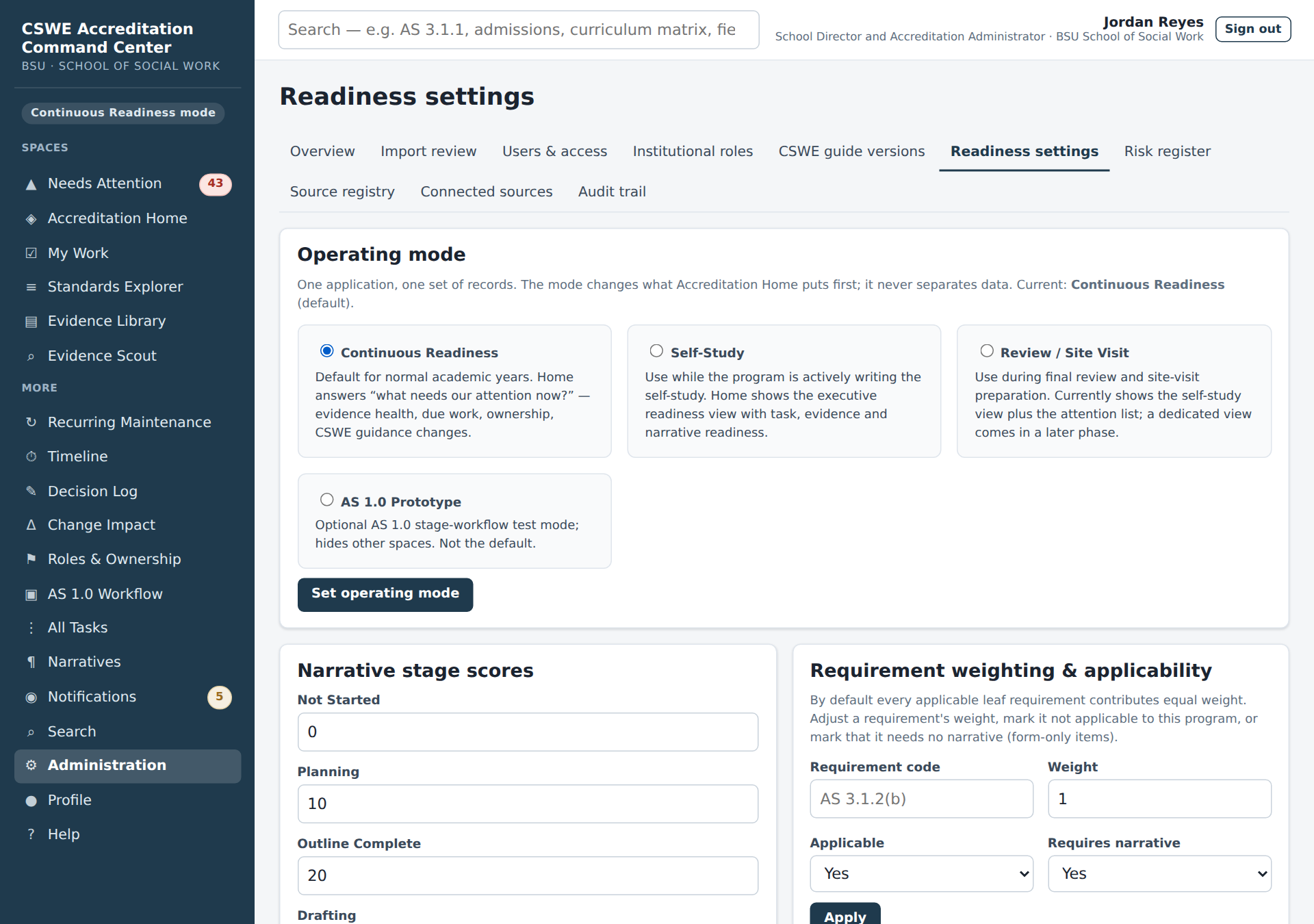
Administrators can still switch the whole application into AS 1.0 Prototype mode (Administration → Readiness settings) to restrict the interface to that one workflow while it is being tested; a banner then says so on every page and the other spaces redirect to Home until the mode is switched back. It is never the default.
B0. Continuous Readiness — what needs our attention now?
The Command Center has three operating modes (Administration → Readiness settings): Continuous Readiness for normal academic years, Self-Study while the narrative is being written, and Review / Site Visit. They change what Accreditation Home puts first; every record and every other screen is the same in all three.
In Continuous Readiness mode, Home opens with Accreditation Health: how many items need immediate attention, how many are due this semester, how many evidence items are due for review and how many CSWE source changes need evaluation. Each number opens a Needs Attention filter that lists exactly that many items. Due this semester counts tasks, recurring reviews and evidence reviews due by the end of the semester (overdue items are counted under immediate attention instead); evidence items due for review counts evidence reviews that are overdue or due by the end of the semester. The line under each list says how many items the filter shows. Below it, Needs attention lists the first dozen exceptions generated from live records — a changed document, an overdue review, a role with no holder, a decision follow-up past due — each with a button that opens the record; See all in Needs Attention opens the full inbox, filterable by category. Nothing in it is typed by hand: fix the record and the item disappears.
A Readiness trend panel shows how the distribution of Ready / In Progress / At Risk / Not Started requirements has moved over the last 26 weeks, one column per week. It is rebuilt from the readiness history: each time a requirement's calculated status changes, the Command Center keeps a snapshot, and each weekly column shows the latest snapshot of every applicable requirement as of that day. Hover over a column for its counts. Like every readiness figure, it is an internal planning measure. Recent decisions & outcomes lists the important decisions most faculty want to know about without opening the task tracker.
Evidence Health is the stewardship state of each evidence item — Current, Review Due Soon (the next review is within 30 days), Review Overdue, Changed Since Review, Unowned, Link Problem or Not Yet Verified. The same 30-day window is used everywhere: Needs Attention calls it Review due within 30 days, and a review due later in the semester appears there as Review due later this semester. The counts in the Home Evidence Health panel equal the Evidence Library filter they link to (an item with two conditions is counted under both). The Home figure Approved without a stored file counts approved evidence whose file is not yet in the Evidence Vault (B5a); it opens the Evidence Library filtered to those items. It describes whether a person has checked the source recently and whether anything changed since; it is never a judgement of adequacy, and an old document is not flagged just for being old. Open an evidence record and use Verify evidence to record that you checked the source (the next review date follows the item's cadence: every semester, annual, every two years, upon change or custom) or Report a change when the Box file has changed.
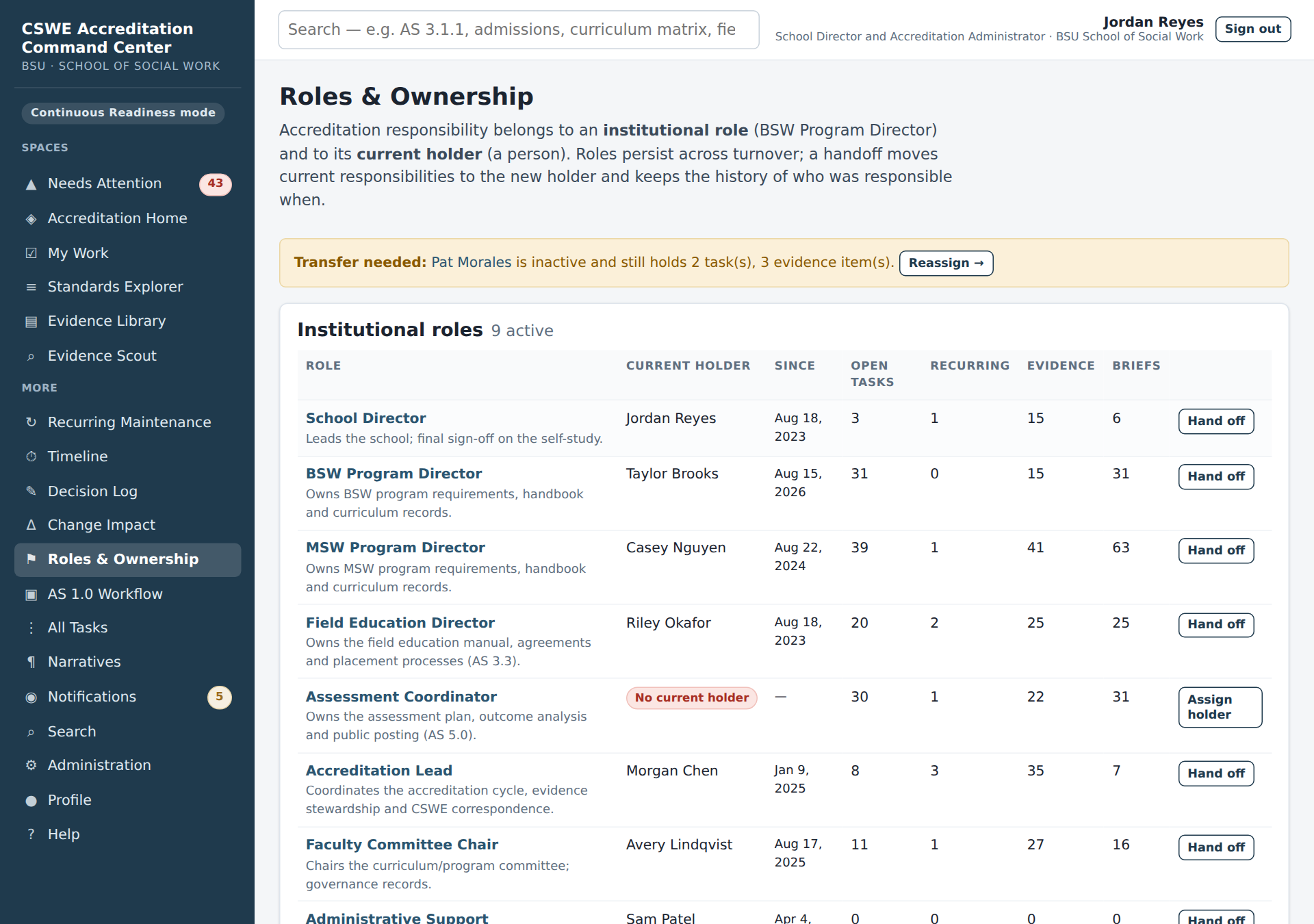
Verification queue. Needs Attention has a category called Verification queue (/inbox?category=verification). It lists every approved evidence item that no one has verified yet, meaning no verification date has been recorded (a planned review date does not take an item out of the queue). Candidate and under-review items are not listed, because Evidence Health is tracked only once an item is approved. In the demonstration data twelve approved items have never been verified: four each for the MSW Program Director, the Field Education Director and the Faculty Committee Chair. Approve a candidate item and it appears here too. The queue is grouped by responsible role, and each role's list shows the current holder, for example MSW Program Director (Casey Nguyen). That way each person can work through their own list. Roles with the most items come first. Items with no responsible role come last, because that missing role is a gap to fix too. Each entry shows the evidence code, how many requirements and claims depend on it, and any other health flag it carries (for example also unowned). The Verify evidence button opens the evidence record at its Evidence Health panel. There you open the source, check it, and record the outcome, the verification date and the next review (or report a change). Once you record the verification, the item leaves the queue. The queue is marked Note rather than Now: an unverified item is stewardship work to schedule, not an accreditation problem, and it does not count toward the "need immediate attention" total. Verifying records that a person checked the source. It says nothing about whether the evidence is adequate; the CSWE Board of Accreditation alone determines compliance.
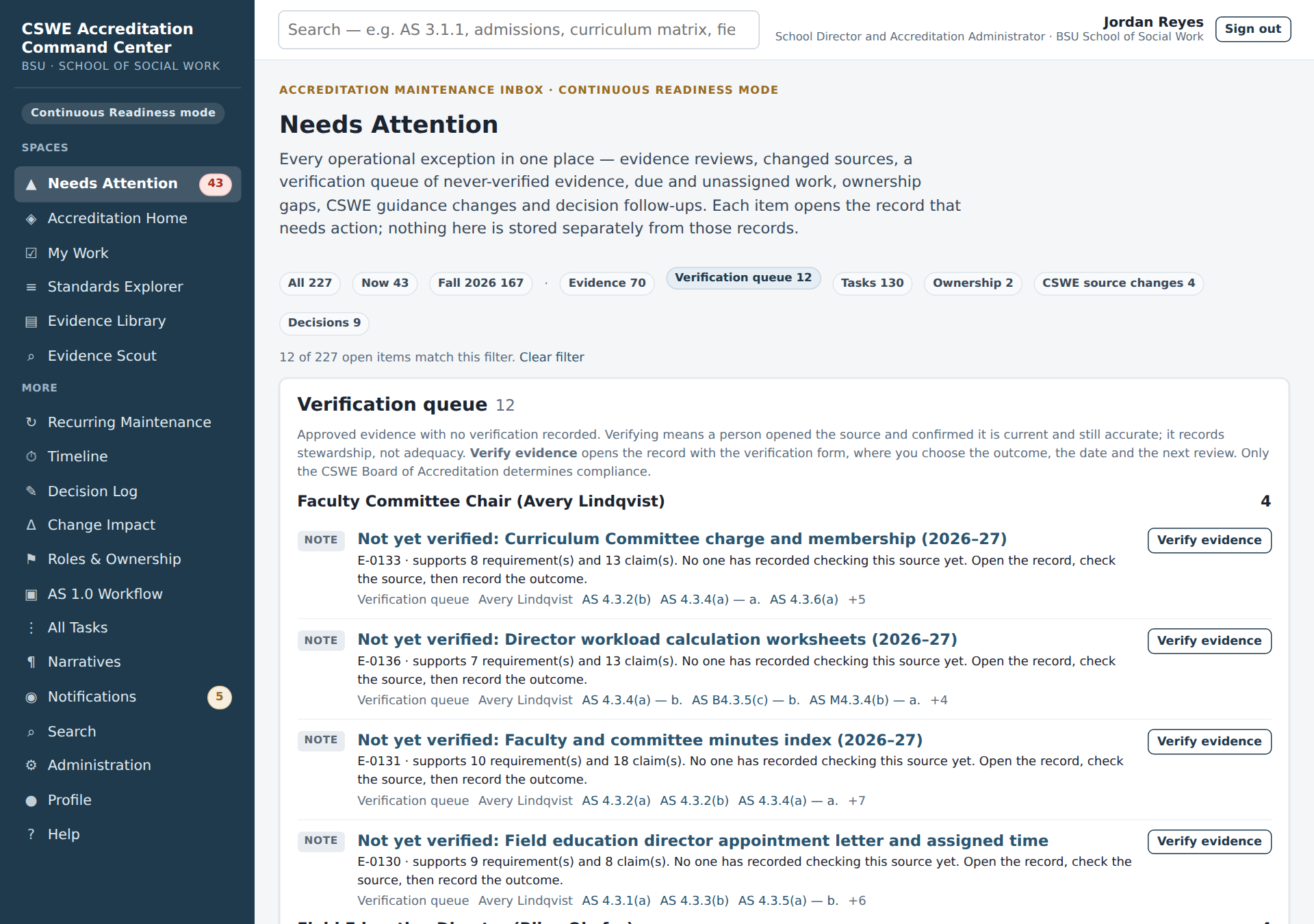
Roles & Ownership lists the program's institutional roles (BSW Program Director, Field Education Director, Assessment Coordinator…), who currently holds each, and the tasks, recurring reviews, evidence and briefs tied to the role. When a person leaves, an administrator runs the Accreditation handoff on the role page: the new holder takes over the current responsibilities, and the history of who held the role when — and every past decision and verification — stays exactly as it was. My Work shows you the work of every role you hold.
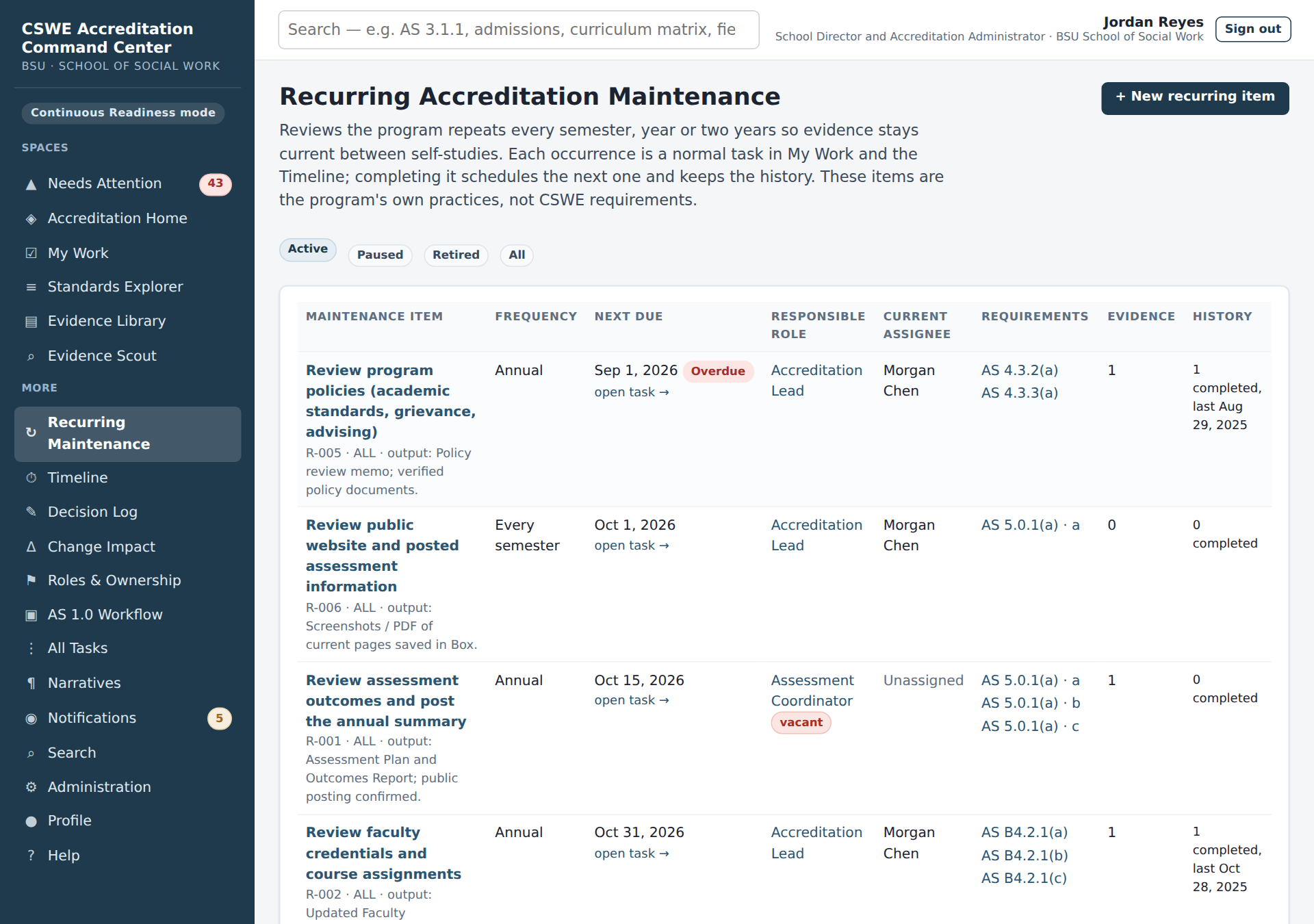
Recurring Maintenance holds the reviews the program repeats — faculty credentials each fall, curriculum changes each semester, the field manual each year, the public website each semester. These are the program's own practices, not CSWE requirements; configure whatever fits. Each occurrence is a normal task that appears in My Work and the Timeline; completing it schedules the next one and keeps the history.
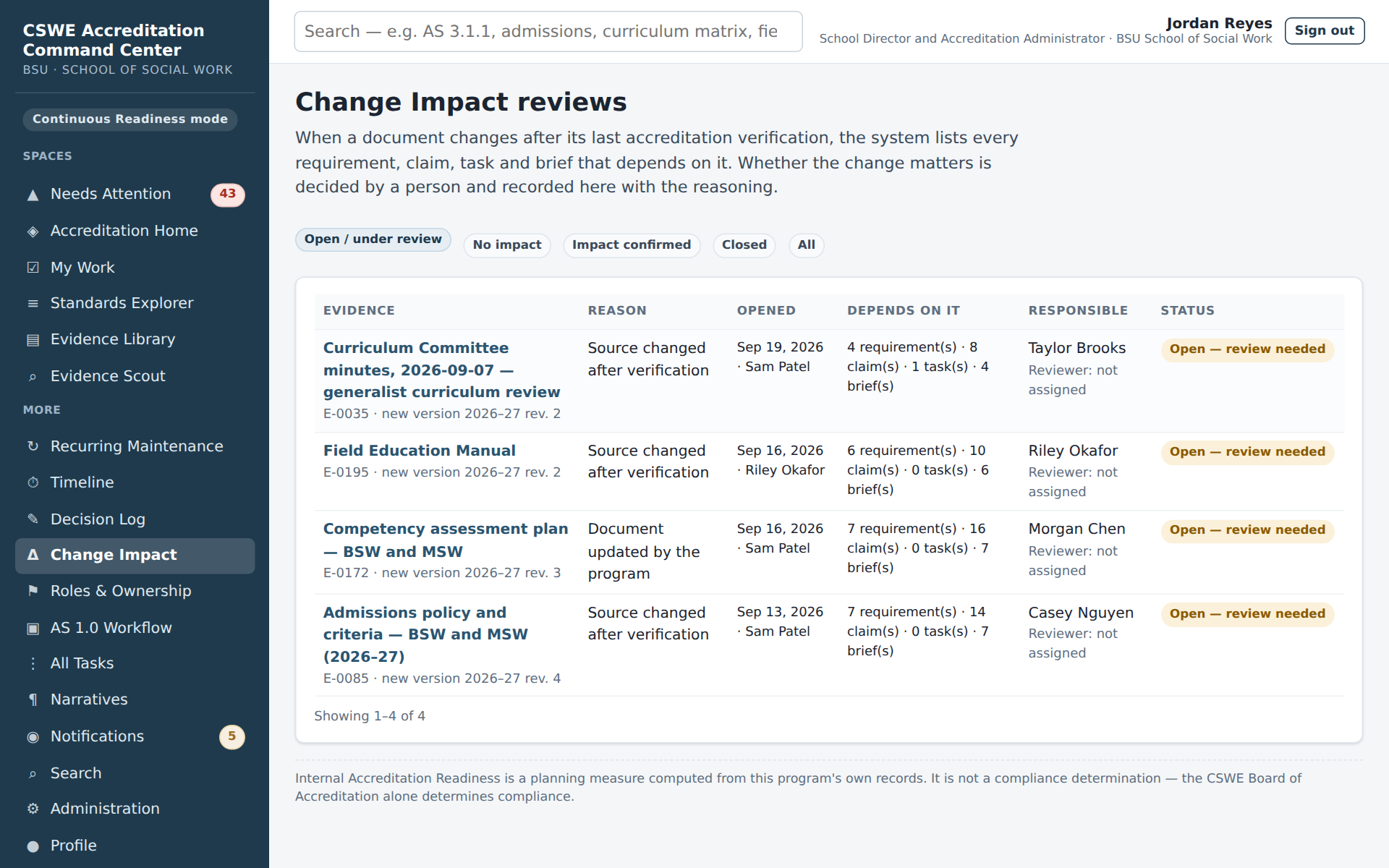
Change Impact is what happens when a document changes after its last verification. A review opens in three ways: someone clicks Report a change to this evidence, a person uploads a file that differs from the verified one, or Check connected sources now brings in a changed file from Box (C8). The system lists every requirement, claim, task, narrative, brief and decision that depends on the document. A reviewer chooses an Outcome (No accreditation impact, Impact confirmed or Still under review), writes a Reviewer summary and notes, and can create a follow-up task. With Also update evidence verification ticked, recording the review also verifies the item and pins the new file. The software identifies the dependencies; the person decides what they mean.
CSWE guide versions (Administration) now also record, requirement by requirement, who reviewed each change in the Interpretation Guide and what the program decided; requirements with program records that have not yet been reviewed appear in Needs Attention under CSWE source changes.
B1. Accreditation Home — the executive view
Accreditation Home is the page most faculty and leadership will look at. It shows, for the whole program or for BSW, MSW or Field separately (Program view):
- Four counts of requirements — Ready, In Progress, At Risk, Not Started — out of the applicable requirements in the active guide.
- Three separate percentages that are never combined: Task Completion, Evidence Readiness and Narrative Readiness. Each is calculated per requirement and averaged with equal weights, so a requirement with fifteen small tasks counts the same as one with a single critical gap.
- Readiness by CSWE section and Readiness by program, open tasks by month, and panels for what changed recently, what is due, what is blocked, what needs attention and recent decisions.
Every number drills down: click a section to filter the Standards Explorer, a status count to list those requirements, a task to open it.
How status is derived (details in Administration → Readiness settings):
| Status | Rule |
|---|---|
| Ready | All active tasks complete, all active claims covered by approved evidence, narrative at final review or final, no open evidence gaps |
| At Risk | An overdue critical task, a critical or overdue evidence gap, a blocked task, an open high/critical risk, any overdue task, or a deadline within 14 days while narrative < 60 % and evidence < 50 % |
| In Progress | Meaningful work recorded and none of the At-Risk triggers |
| Not Started | No task, claim, evidence link or narrative recorded |
An administrator may override a status with a written reason; the calculated status remains visible alongside the override.
B2. Standards Explorer
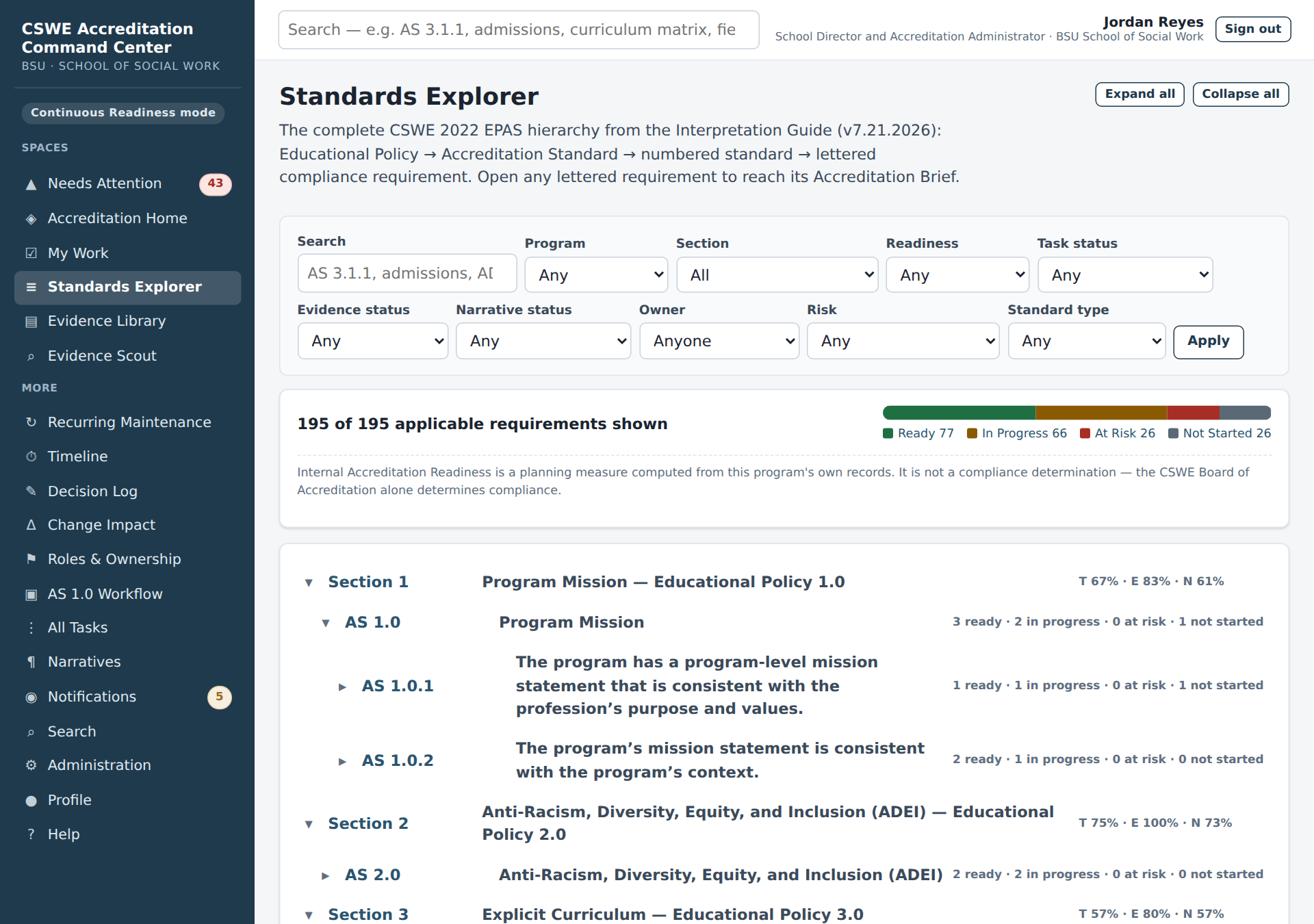
The Standards Explorer lists the 2022 EPAS structure as it appears in the Interpretation Guide: sections, educational policies, accreditation standards and every lettered compliance statement (for example AS 3.1.1(a) through (d)). Filter by section, program, status, owner or team; use the search box for text. Each row shows the three percentages, owner and next deadline. Clicking a lettered requirement opens its Accreditation Brief; clicking a standard shows the standard page with all of its requirements.
B3. The Accreditation Brief — one workspace per requirement
The brief is where the self-study is actually written. Every lettered requirement has exactly one brief, and it contains twelve numbered sections you can jump to from the chips under the header.
- What CSWE requires — the educational policy, the accreditation standard and the compliance statement, reproduced from the active Interpretation Guide with the page number. Verify against the source block in the print view before quoting.
- CSWE interpretation & writing guidance — the BOA interpretation, the checklist of what the narrative must contain, required enclosures and forms, and related definitions and tips from the guide.
- What we are claiming — our program claims for this requirement, each scoped to BSW, MSW, Field or all. A claim is the unit of "evidence need": every claim needs at least one approved evidence item. Add claims with Add claim.
- Tasks — every task linked to the requirement, with status and due date; + Task creates a new one already linked to the brief.
- Evidence we have — approved evidence with Box links, plus candidate items awaiting review. For each item the table shows its Health (the Evidence Health badge, e.g. Changed Since Review), its Vault state (the stored version, which version this requirement's claims are pinned to, and file changed since pin when the stored file is newer than the pinned one; click it to open the vault view), and Verified / assessed: when a person last verified the source, and separately when a reviewer assessed its quality. Link attaches an existing library item to the brief or to a specific claim.
- Evidence we still need — evidence gaps: claims without approved evidence and gaps recorded manually with Add gap (severity, owner, due date). Critical gaps make the requirement At Risk until resolved.
- Narrative — the working draft (see B4).
- Decisions & outcomes — decisions linked to this requirement, from the Decision Log.
- Recent activity — who changed what, when.
- Related standards — requirements the guide cross-references and requirements that share evidence.
- Open questions — parking-lot questions for the team; resolve them with Resolve once answered.
- Export — Print / PDF view produces a clean, printable version of the brief with the guide source block.
When CSWE guidance for the requirement changed and no one has yet recorded a review, a notice under the header says so and links to the before/after comparison (Review the change →), where the brief owner can record the review (C4).
The right column shows ownership (change the owner or team with Change), the readiness breakdown for this requirement and the Administrator override control.
B4. Writing the narrative
Open section 7 of a brief and click Create narrative (once) or Save narrative to update the draft. Each save creates a revision, so nothing is lost. The narrative has a stage: Not Started → Planning → Outline Complete → Drafting → Draft Complete → Ready for Review → Under Review → Revisions Needed → Final Review → Final. The stage drives Narrative Readiness (for example Draft Complete = 60 %, Final Review = 90 %, Final = 100 %; administrators can adjust these values).
Open the narrative's own page (click its title in section 7) for:
- the CSWE writing checklist taken from the guide, to tick off as you cover each point;
- Evidence referenced — link the approved evidence you cite, so the citation trail is explicit;
- Revision history;
- the Narrative Assistant.
Narrative Assistant. Choose an action and click Run: Create outline from CSWE checklist, Map claims to approved evidence, Identify unsupported claims, Identify unanswered questions / gaps, Draft evidence-bound language or Revise draft for clarity. The assistant works only from the requirement text, our claims and approved evidence. Where evidence is missing it writes EVIDENCE NEEDED rather than inventing a bridge; it never asserts compliance and never treats a planned initiative as current practice. Its output is a suggestion for you to edit — nothing is saved until you save the draft. Confidential or restricted evidence text is withheld from external AI models unless an administrator has explicitly allowed it.
B5. Evidence Library and the review workflow
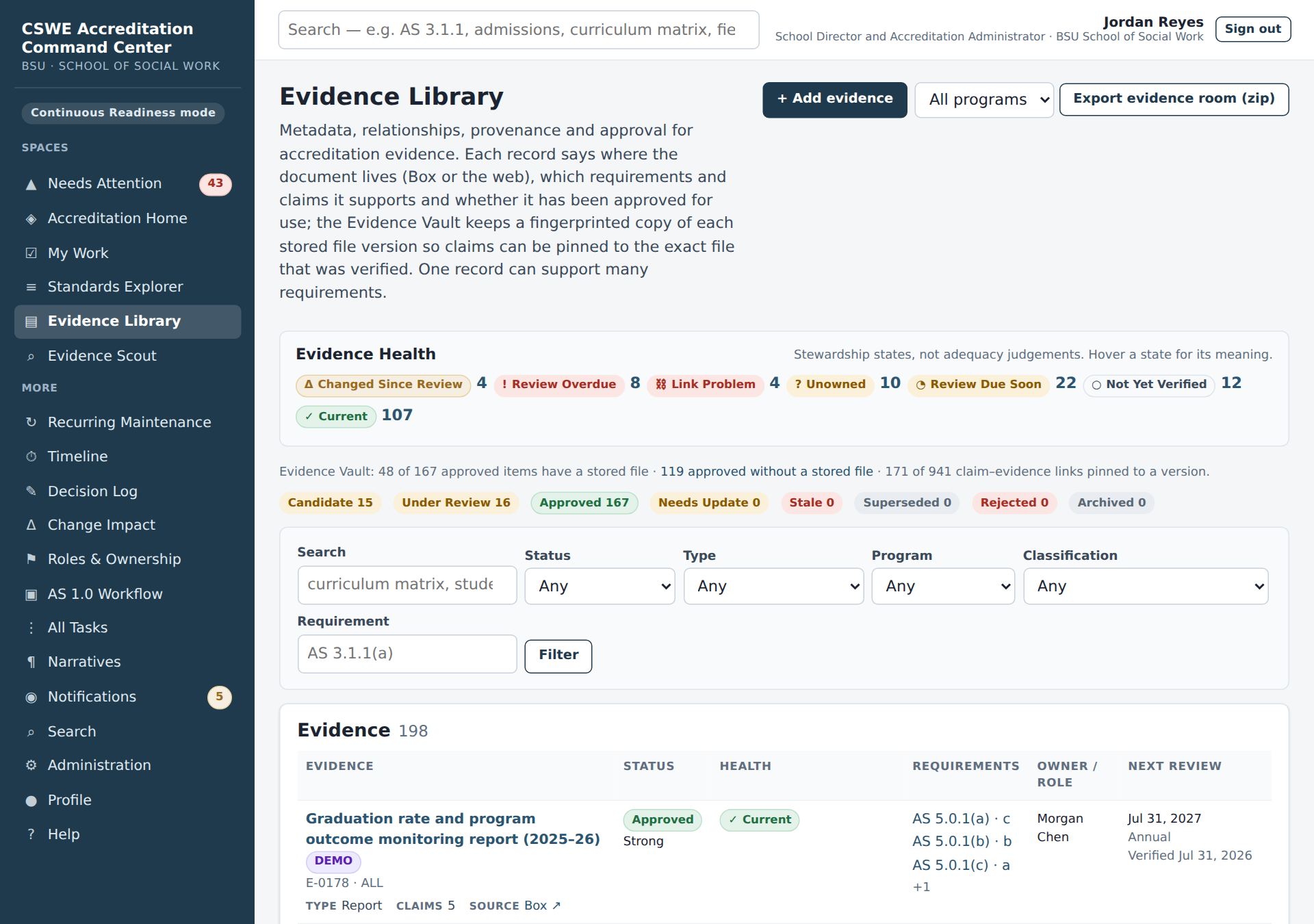
The library is the register of everything we may cite. Each item records: title, type (policy, syllabus, curriculum matrix, survey, report, handbook, minutes, data, webpage, form…), Box link or URL, owner, source, program scope, status, currentness (current practice / planned future work / historical background / contextual only), classification (program practice / institutional support / institutional context / external context), sensitivity (public / internal / confidential / restricted), review date, and the requirements, claims, tasks and narratives it supports.
Statuses: Candidate (proposed, not yet reviewed) → Under Review → Approved (may be cited) / Rejected; later Needs Update, Stale, Superseded or Archived. Only approved items count toward Evidence Readiness.
To add evidence: Add evidence, fill in the form, and link it to at least one requirement (Link requirement) and, ideally, the specific claim it supports (Link claim). To review evidence you must hold the Evidence Reviewer or Administrator role: open the item, complete the Evidence quality assessment (strength: strong / moderate / limited, currentness, classification), set the status and click Save review. The reviewer, date and rationale are recorded in the audit trail.
Program versus institution matters. A university-wide policy is institutional support: it can support a claim, but it does not by itself demonstrate what the program does. The library and the Scout label these explicitly so a narrative does not accidentally present institutional practice as program practice.
B5a. The Evidence Vault — the exact file behind every claim
The Command Center is the program's system of record for evidence. Box, shared drives and university websites stay where people work; they are connected sources. Every evidence record has a Vault panel (and a fuller view under Open the vault view →) that keeps a copy of every version of the file.
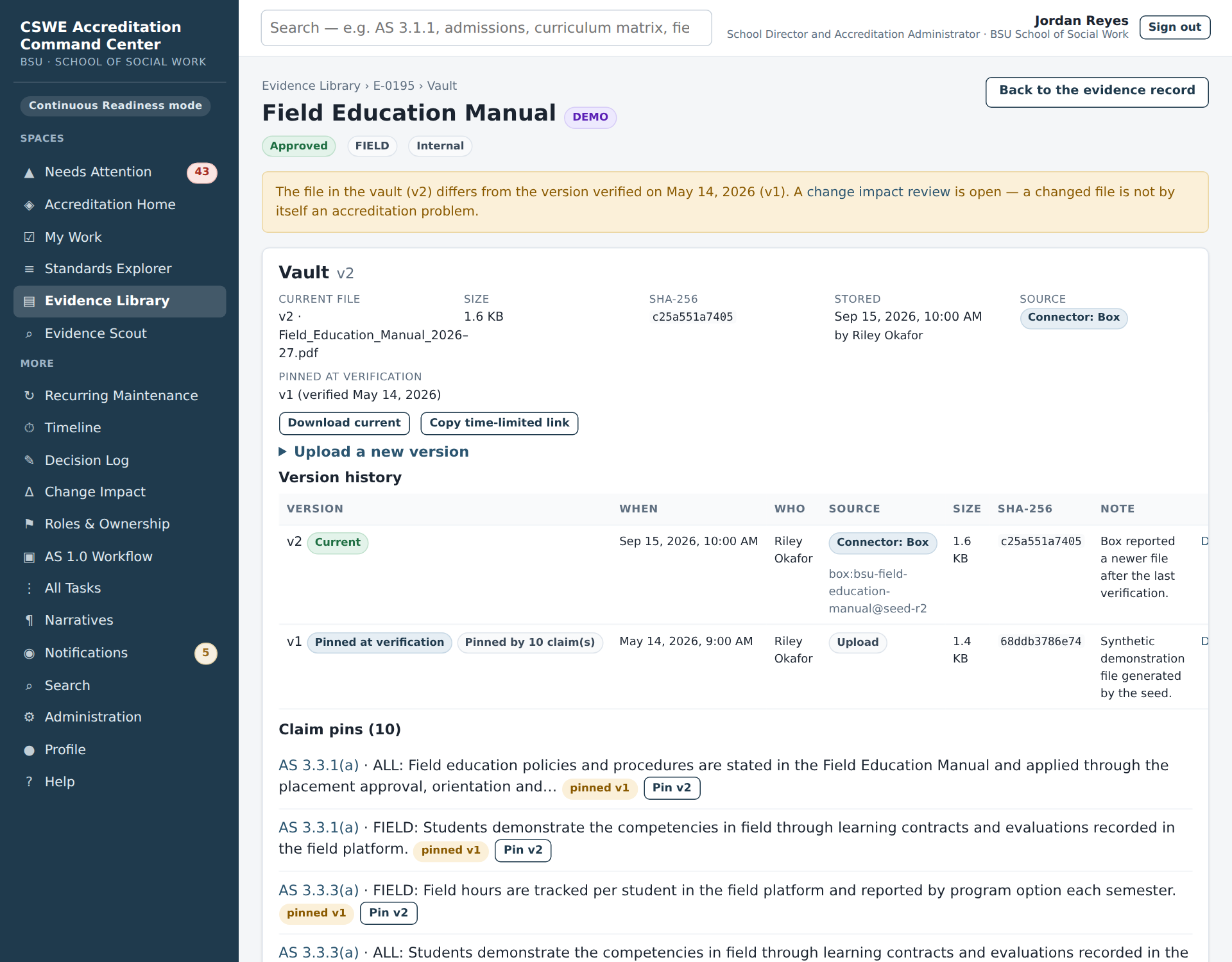
- Versions. Each file a person uploads (Upload a new version) or a connected source brings in becomes a numbered version (v1, v2 …). A version never changes and is never deleted. Each one records who stored it, when, from where (Upload or Connector: Box) and an optional note.
- Fingerprints. Each version carries a SHA-256 fingerprint, a code computed from the file's exact bytes (the panel shows its first twelve characters). Two files with the same fingerprint are the same file. If you upload a file that is already stored, the vault recognises it and does not store it twice. If you upload an earlier file again, that earlier version becomes current again.
- Pins. When someone records Verify evidence, the vault pins the current version to the item (Pinned at verification) and to every claim linked to it (Claim pins). A reviewer who later reads a claim can open the exact file it was checked against. *Pin vn*** re-pins a single claim to the current file.
- Change detection. A new version whose fingerprint differs from the pinned one turns the item's health to Changed Since Review and opens a Change Impact review. Only the fingerprint counts. A new "modified" date on an identical file changes nothing, and a small edit with an unchanged date is still caught. Whether the change matters is decided by a person (B0, Change Impact).
- Downloads and links. Download current (or any row in Version history) downloads that version. Copy time-limited link produces a link that works for about ten minutes for the person who created it. Every download and link is recorded in the audit trail.
- Evidence room. Accreditation leads, team members and administrators can download an evidence room: a zip with the current file of every approved item, an
index.htmlto browse it and amanifest.jsonwith each file's fingerprint. Where a file changed after verification, the verified version is included next to it. Use Export evidence room (zip) at the top of the Evidence Library, or next to the vault figures in Administration → Connected sources; choose All programs, BSW, MSW or Field first. The button is shown only to people who may export. The Evidence Library also shows vault coverage: how many approved items have a stored file and how many claim–evidence links are pinned to a version, with a link to the approved items that have no stored file yet. - File size. The upload form states the largest file it accepts (25 MB by default). On the hosted demonstration the limit is 4 MB, because the hosting platform caps the size of a single request. The evidence-room download is limited to 4 MB there as well, so export one program at a time. For a larger file, keep it in Box and record the Box link on the evidence item, or upload a smaller PDF export.
- Who can do what. Everyone who can see evidence can download it, except restricted files (people who approve, verify or edit evidence, and the item's owner) and confidential files (team roles and the owner). Faculty contributors can upload new versions of items they own. Leads, team members and evidence reviewers can upload to any item (with edit rights). Only leads, team members and administrators can export the evidence room.
B6. Evidence Scout
Evidence Scout is a research and triage helper. From a brief click Find additional evidence, or open Evidence Scout, choose the requirement, a mode and an optional focus.
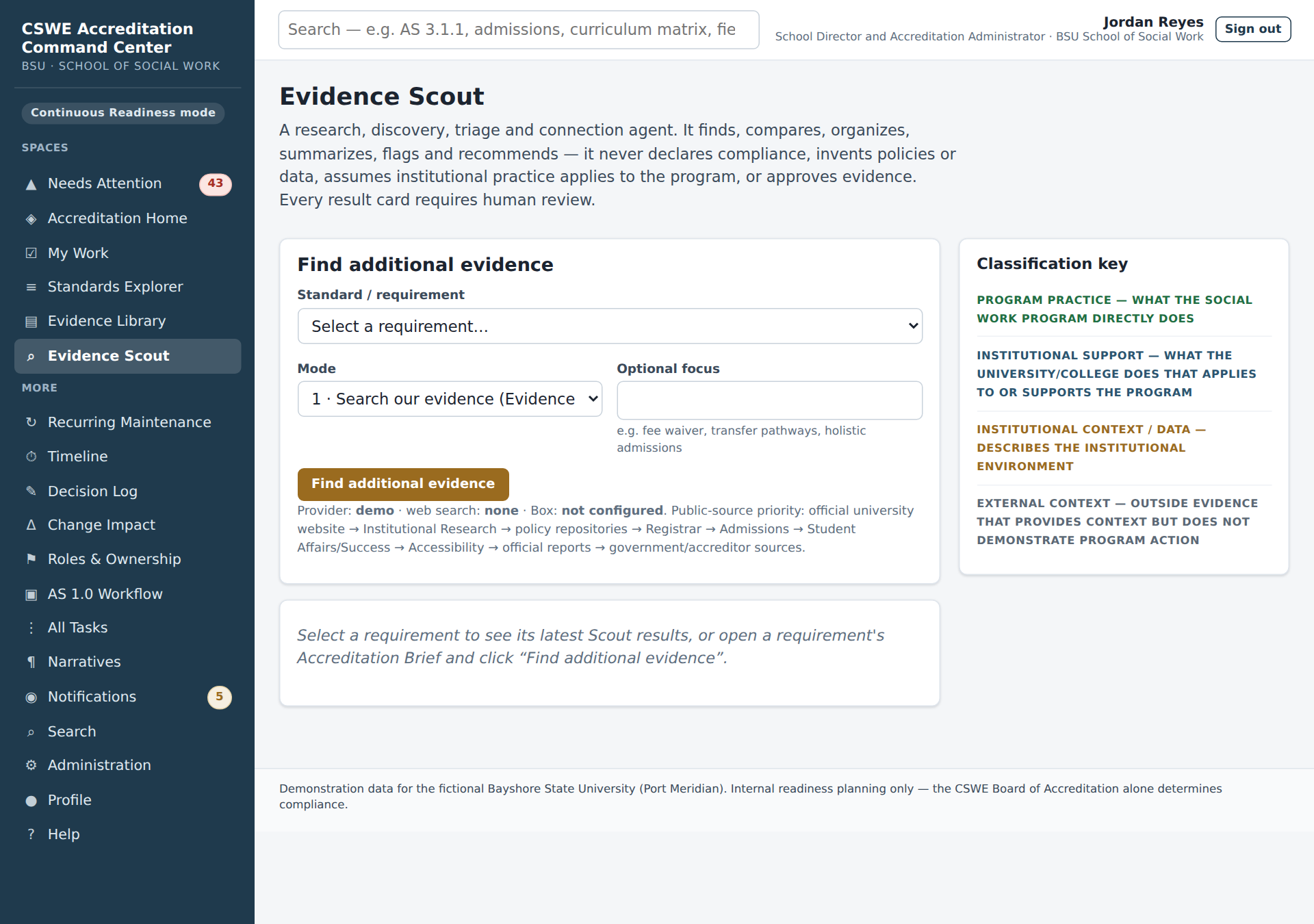
- Mode 1 · Search our evidence looks through the Evidence Library.
- Mode 2 · Search Box searches the program's Box folders (available once the Box integration is configured).
- Mode 3 · Public and institutional sources looks for official university data — catalog, policy repositories, Institutional Research, Registrar, Admissions — in priority order, followed by government and accreditor sources.
Each result is a card with: source, URL or Box location, a summary, how it relates to the requirement, classification (program practice / institutional support / institutional context / external context), currentness, evidence strength, whether it is already in the library, a confidence level and a recommended next step. Decide per card: Save for later (creates a candidate evidence item), Mark reviewed or Reject. The Scout can only create candidates — it never approves evidence, never invents policies or data and never declares compliance.
B7. Decision Log
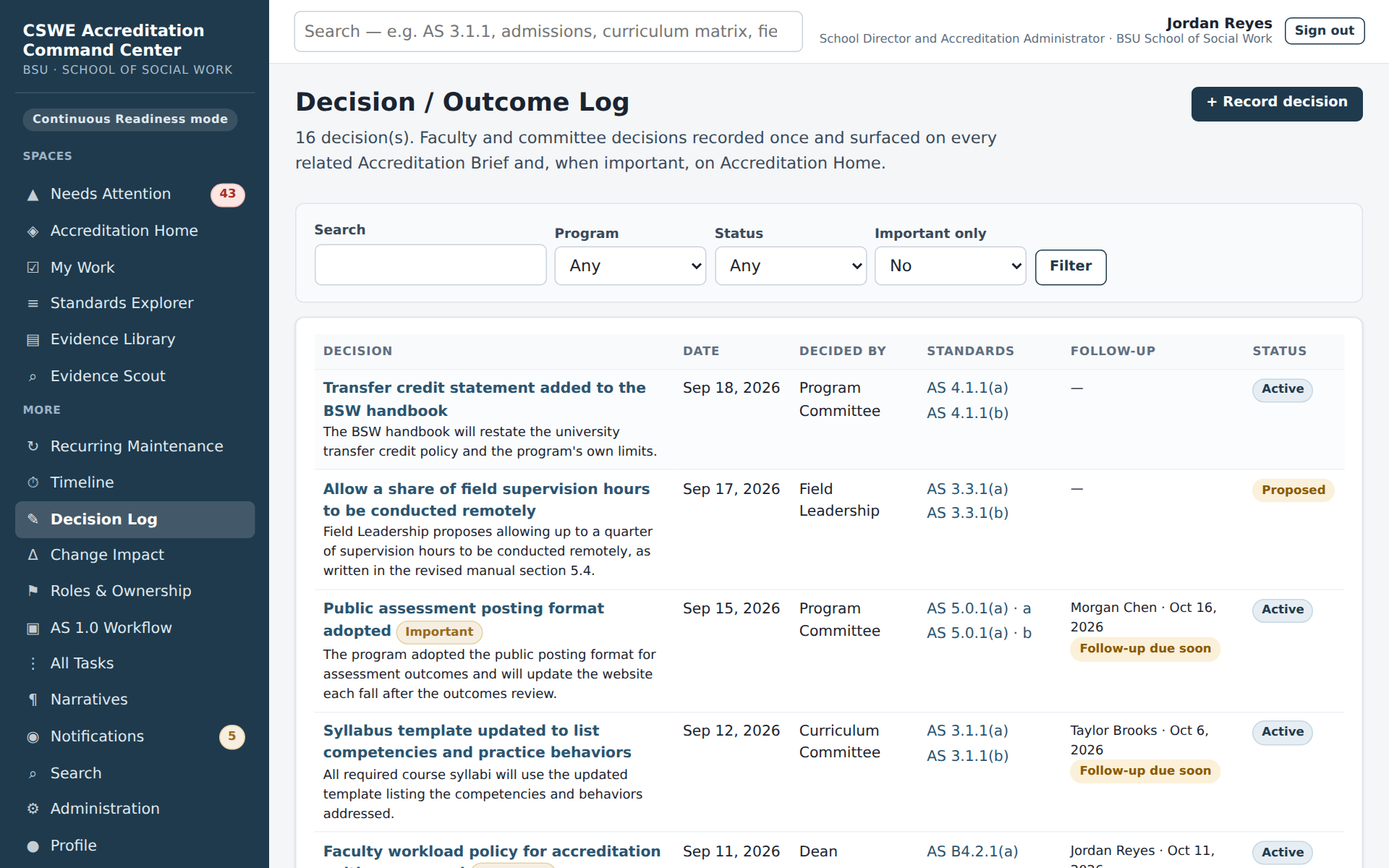
Decisions are recorded once and appear everywhere they matter: on the Decision Log, on the linked briefs, on related tasks and in the Home panel. Click Record decision, give it a title, the decision or outcome, the rationale, the date, who decided, and link the requirements, tasks, claims or evidence it affects. Typical entries: a policy wording adopted, a program option dropped, a survey instrument approved, a self-study structure decision. Link a decision to a task when the task cannot proceed until the decision is made.
B8. Timeline
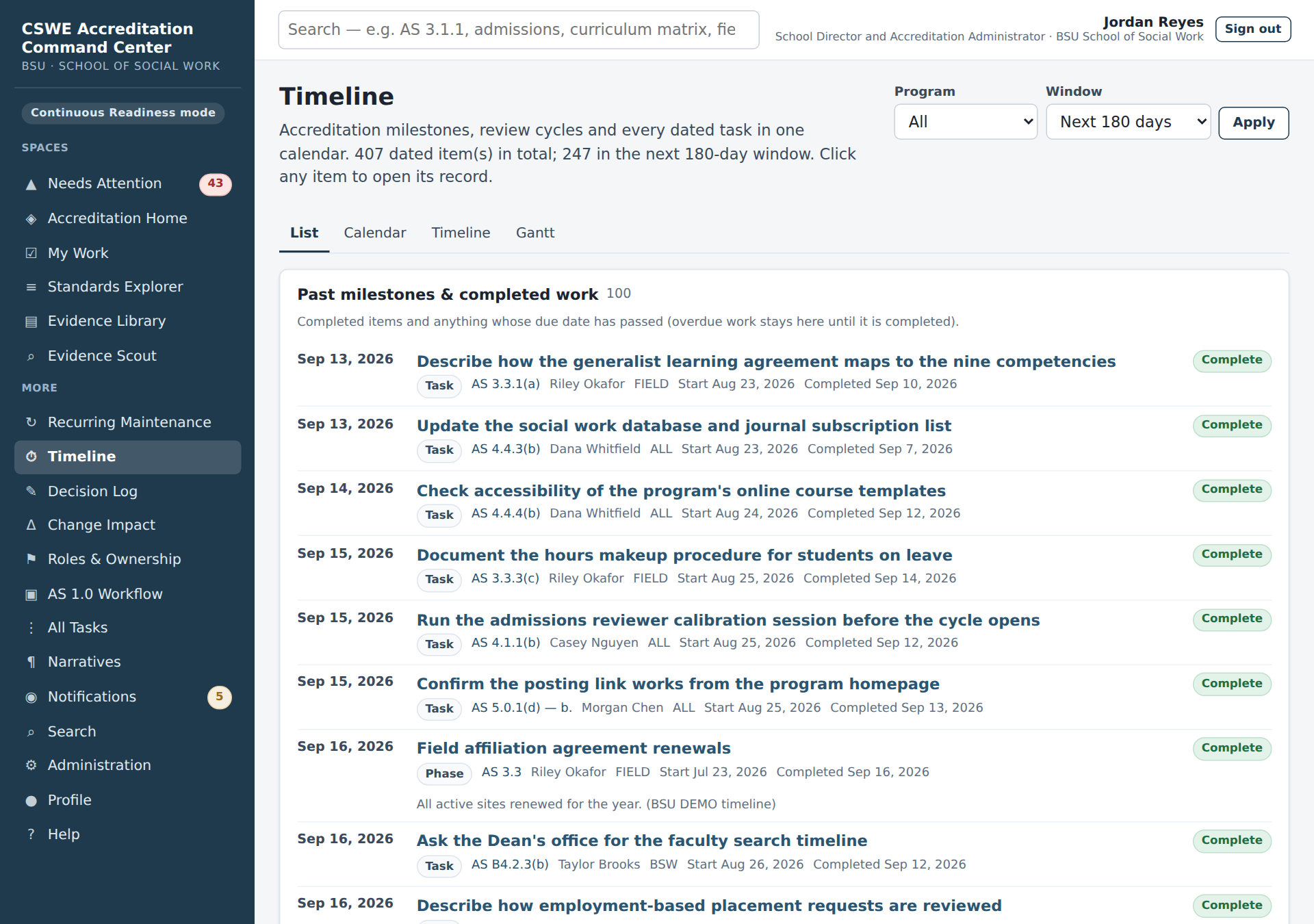
The Timeline shows milestones — from the imported workbook and added by the team — and tasks with due dates, in four views: List, Calendar, Timeline and Gantt. Past items, the current period and the future are distinguished; clicking any item opens the underlying record. Each task shows its real status (for example Ready For Review, Waiting or Blocked), the same status My Work and the brief show; only the Gantt bars group statuses into three colours. Filter by program. Add milestones with the form at the bottom of the page.
B9. Reviewing tasks
When a contributor clicks Request review, the task moves to Ready for Review and appears under Ready for my review on the reviewer's My Work. Open it, read the comments and linked evidence, then set the status to Complete (or back to In Progress with a comment explaining what is missing).
Part C · Administrators
C1. Administration overview and first-run checklist
Administration → Overview shows the latest workbook import, the active CSWE guide version, internal readiness, risks and a First-run checklist: confirm institution settings, review the import queue, confirm brief owners, invite users, set milestones.
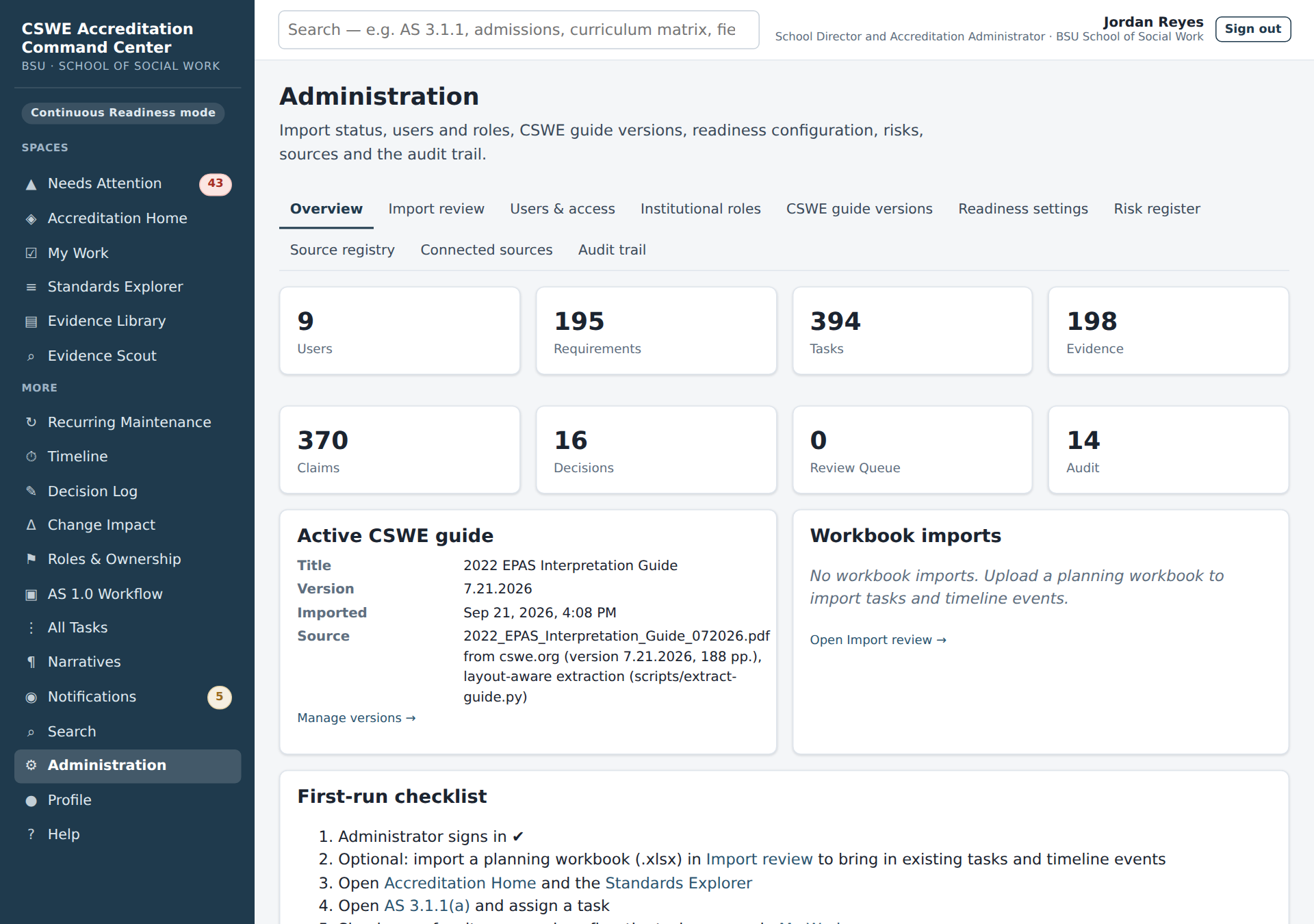
C2. Importing the Excel workbook
Administration → Import review lists every import batch with a Validation report: how many records of each type were imported and how many were queued for review (nothing is discarded silently).
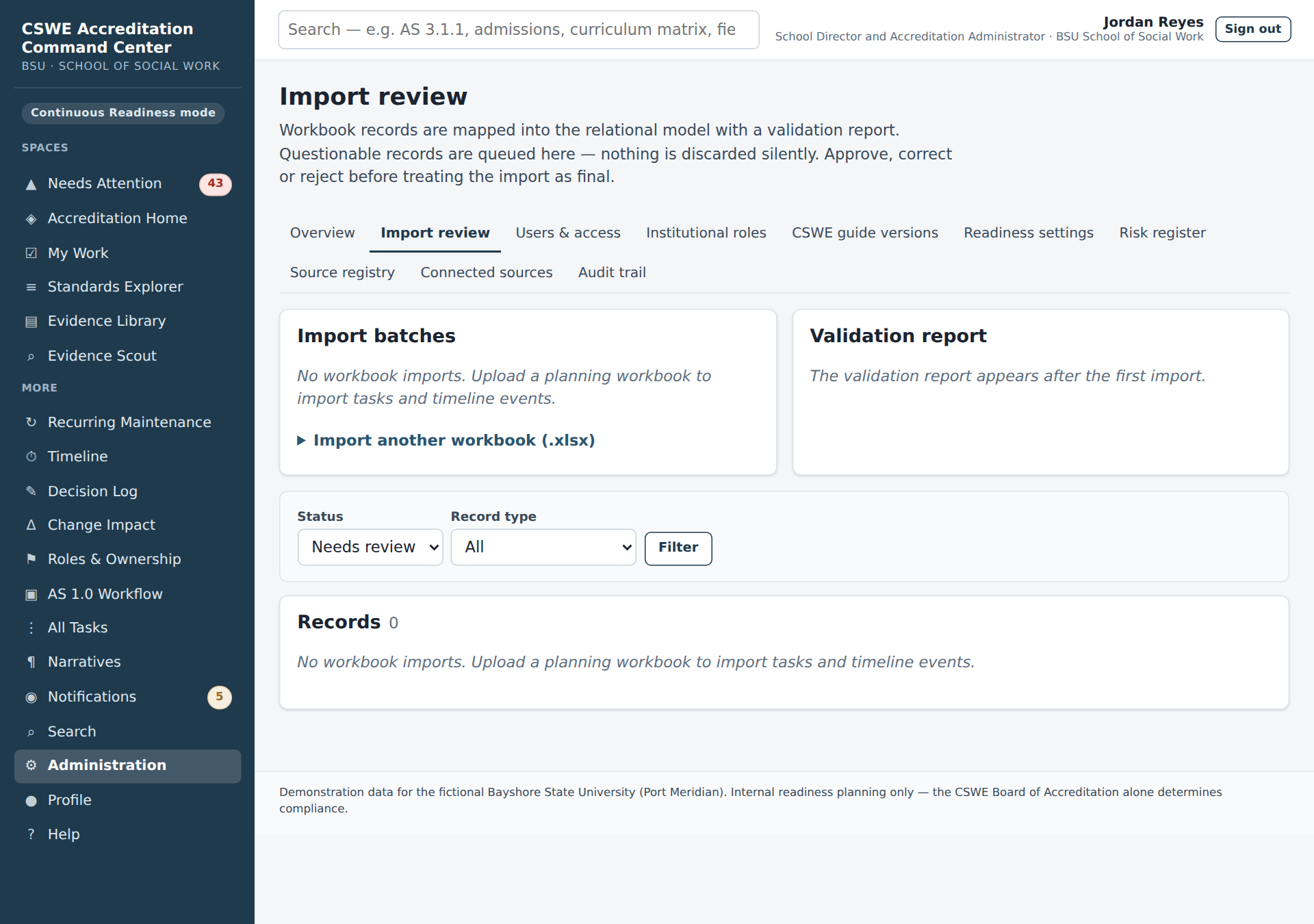
Records land in the review queue when the importer is not sure: a potential duplicate, a broken link, a formula error in the sheet, a missing reference, an unrecognised status, an ambiguous owner or standard, a data conflict between sheets, a missing required field, an inferred date or an item the guide has that the workbook does not. Open each queued record, read the explanation and choose Approve, Mark corrected or Reject. Once the queue is clear, finalize the batch.
To import an updated workbook, expand Import another workbook (.xlsx), choose the file and click Run import. Header rows are found by their text, not their position, so modest layout changes are tolerated; the importer recognises the BSW, MSW, Field, Timeline and Parking Lot sheets.
C3. Users and roles
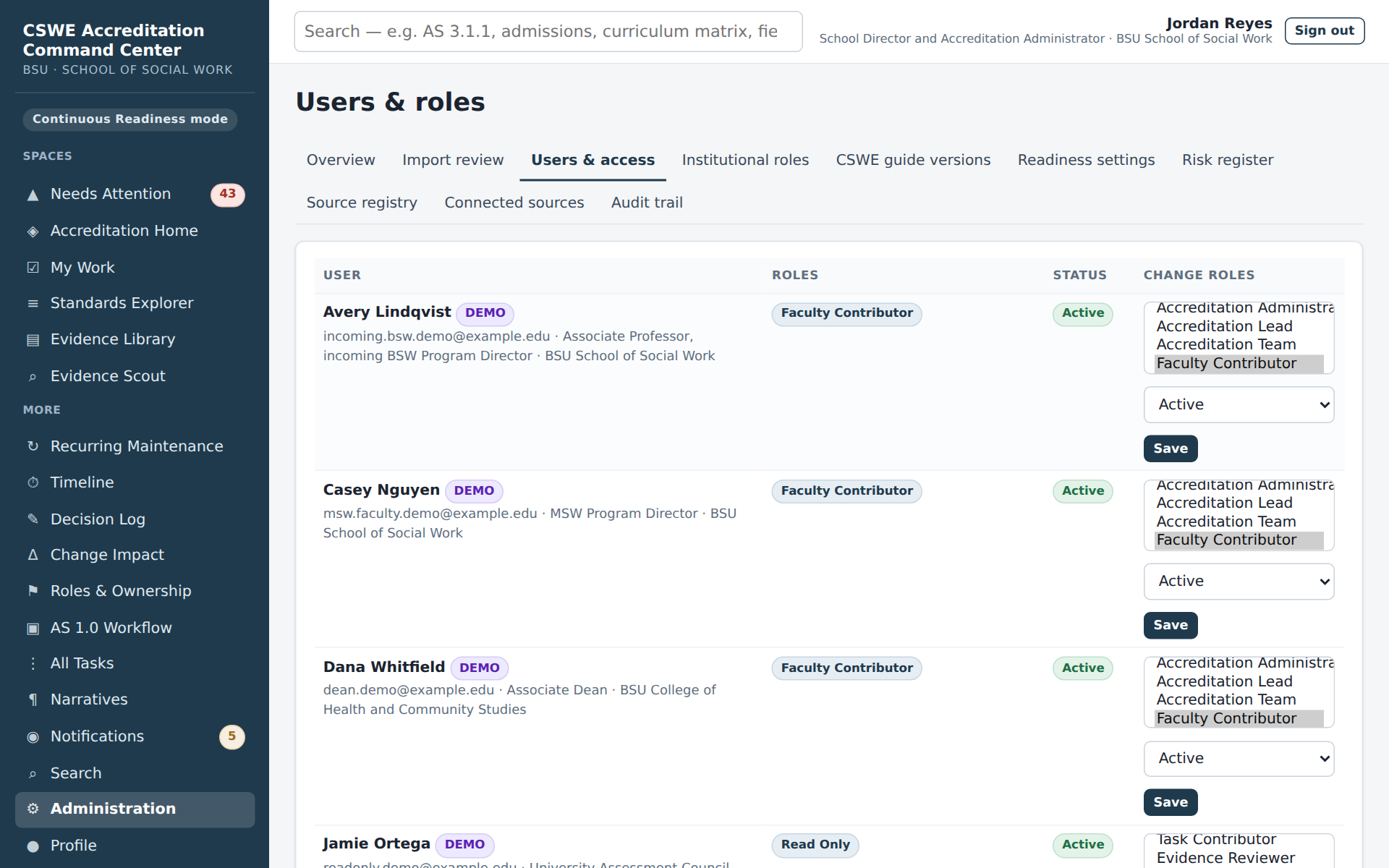
Administration → Users & roles lists accounts and their roles. Create an account with Create (name, email, roles, default space, program). Roles and what they allow:
| Role | Can |
|---|---|
| Accreditation Administrator | Everything, including settings, users, imports, guide versions, overrides |
| Accreditation Lead / Self-Study Writer | Edit briefs, claims, narratives, gaps, decisions; assign tasks; review narratives; run the Scout; see all programs and the audit trail |
| Accreditation Team | Manage tasks, add and edit evidence, edit claims and narratives, record decisions |
| Faculty Contributor | See and update their own tasks, add candidate evidence, comment |
| Task Contributor | Update assigned tasks only |
| Evidence Reviewer | Review and approve evidence; read everything |
| Narrative Reviewer | Review narratives; read everything |
| Read Only | Read everything; change nothing |
A user may hold several roles. Permissions are enforced on every page and action, not just hidden in the menu.
Some permissions matter most in continuous readiness. Verifying evidence and reviewing a change impact belong to administrators, leads, team members and evidence reviewers. Only administrators and leads can confirm an AS 1.0 interpretation, and only they can open Connected sources. Only an administrator can arm the demo connector or change the operating mode. Evidence Vault rights: every role can download (restricted and confidential files have the extra rules in B5a), faculty and task contributors can upload new versions of items they own, and administrators, leads and team members can export the evidence room. Moving a narrative into Under Review, Revisions Needed, Final Review or Final needs the narrative-review permission. Only people who can assign tasks can change a narrative's owner or reviewer.
C4. CSWE guide versions
The Interpretation Guide is the top of the source-of-truth hierarchy, so its version is controlled. Administration → CSWE guide versions shows the active version and every stored version.
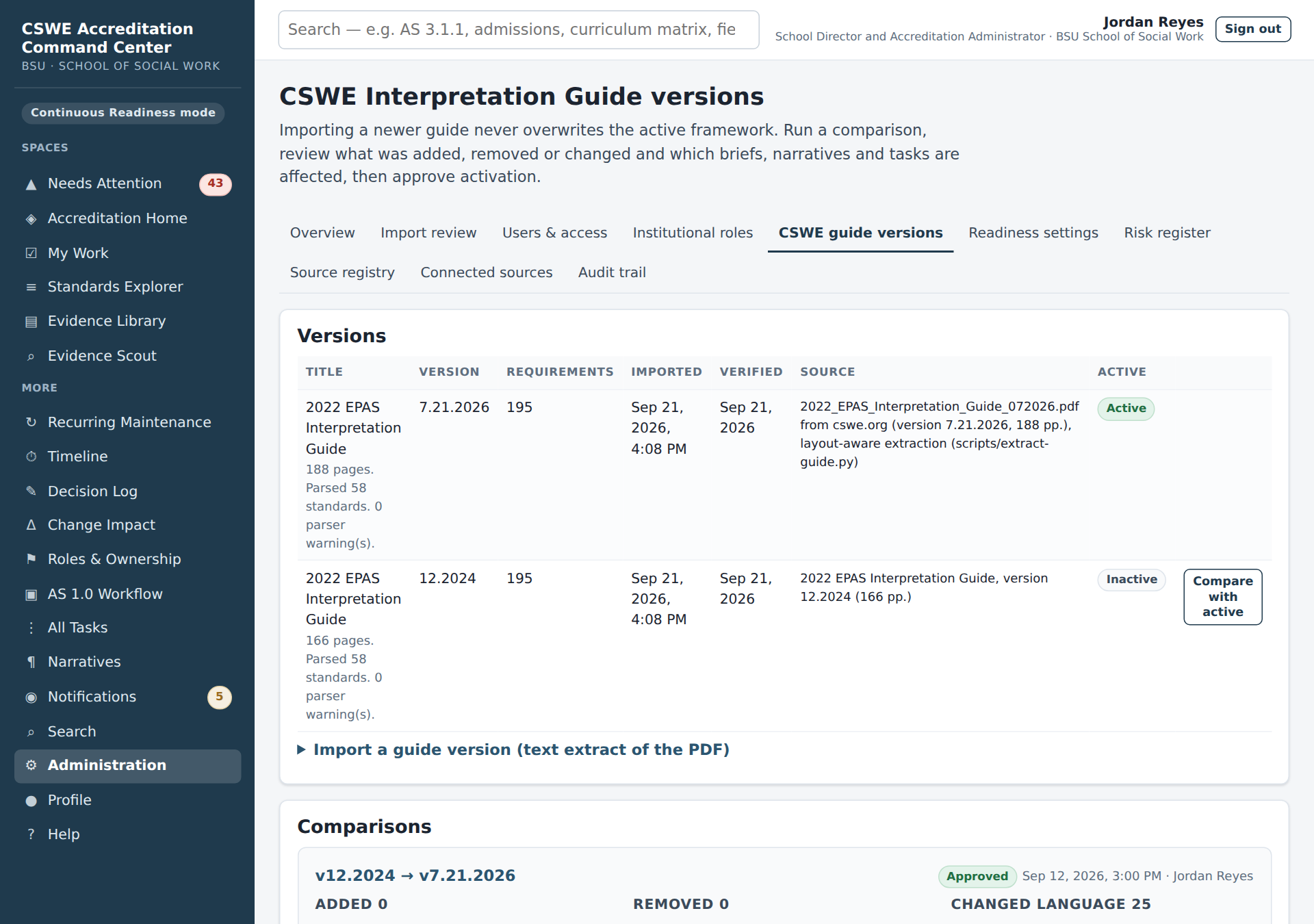
To adopt a new CSWE release: extract the text of the PDF (see the README, How CSWE guide parsing works), upload it and click Parse and import as inactive version. Then Compare with active: the comparison lists every requirement whose compliance-statement language, checklist or interpretation changed, plus requirements added or removed. Review the change set and click Approve and activate new version. Program records — claims, tasks, evidence links, narratives, decisions, owners and overrides — are carried across by requirement code, and the change set stays on record with who approved it and when.
After activation, each requirement with program records gets a human review row on the comparison page. Needs Attention routes it to the brief's primary owner (CSWE guidance changed for …), and the brief shows a notice. The brief owner, or anyone who manages the guide or tasks, records the review there: a decision (No change needed, Records updated, Follow-up task created, Other) and a note.
C5. Readiness settings
Administration → Readiness settings holds the institution details (name, short name, domain, program unit), the narrative stage scores, the deadline-risk window (default 14 days), and per-requirement weighting and applicability (mark a requirement not applicable to a program, or change its weight). Readiness is recalculated after each save.
C6. Risk register, source registry and audit trail
- Risk register — program-level risks (level, owner, linked requirements). Open high or critical risks mark their requirements At Risk.
- Source registry — the authoritative sources the Scout and the library draw from: the guide, the workbook, Box folders, official university pages, with their trust level.
- Audit trail — every change to due dates, statuses, evidence approvals, readiness overrides, users and settings, with who, when, old value and new value. Filter by user, record type or date.
C7. Running and maintaining the system
- Starting on a Mac (personal install): double-click
Start Command Center.commandin the project folder, or runnpm run localin Terminal. Leave the window open; Ctrl+C stops the app and its database. Data persists in the.localdbfolder between runs. - Shared use: host the app on a server or hosting service with a PostgreSQL database (see README → Deploy). The local database is for one machine only.
- Backups: back up the PostgreSQL database (
.localdbon a personal install). With the default storage setting the Evidence Vault's files live in the same database, so one backup covers both. WithSTORAGE_PROVIDER=supabase, the files live in a private Supabase Storage bucket, which needs its own backup. - AI and search providers, Box: set the keys in
.env(see.env.example). Without keys the Scout and Narrative Assistant run in demonstration mode and say so on screen. - Institution settings in the demonstration installation are set by migration
0005_bsu_identity.sqlto the fictional Bayshore State University School of Social Work; a real installation setsINSTITUTION_*in.envand confirms them in Administration → Readiness settings.
C8. Connected sources and the Evidence Vault
Administration → Connected sources lists each connector, whether it is enabled, when it last checked and what the last run found.
- Check connected sources now asks every enabled connector for files that changed since its last check. Each new file becomes a new vault version on the matching evidence item. If the item was verified and the new fingerprint differs from the pinned one, the item turns Changed Since Review and a Change Impact review opens. Recent runs records each check: when, how many changes, how many new versions and any error. A failed connector records its error and does not stop the others.
- Demo connector. The demonstration installation includes a simulated Box file, Generalist curriculum matrix (BSW). Simulate a source change (administrators only) arms it; the next check brings in a new revision of that document. Nothing leaves the server. Walkthrough Step 6 uses this. Turn the demo connector off with
CONNECTOR_DEMO=false. - Box. The Box connector is off until
BOX_ENABLED,BOX_CLIENT_ID,BOX_CLIENT_SECRETandBOX_ENTERPRISE_IDare set. It tracks the Box file IDs recorded on evidence items whose source system is Box. In this release it is a tested skeleton that has not yet been run against a live Box account. - Storage. By default the vault stores file bytes in the PostgreSQL database (
STORAGE_PROVIDER=postgres). This needs no setup and also works on Supabase Postgres.STORAGE_PROVIDER=supabasewithSUPABASE_URLandSUPABASE_SERVICE_ROLE_KEYuses a private Supabase Storage bucket instead. The note under the connector table shows how many versions are stored, for how many items, and how much space they use; Export evidence room (zip) sits next to it (B5a). - Upload limit.
VAULT_MAX_UPLOAD_MB(default 25) sets the largest file a person can upload. On Vercel the effective limit is 4 MB, whatever this setting says, because the platform rejects requests above about 4.5 MB before the application sees them.VAULT_MAX_EXPORT_MBlimits the evidence-room download, which is also at most 4 MB on Vercel. Seedocs/DEPLOYMENT.md. The upload form always states the effective limit. - Checks are manual. There is no background scheduler on the hosted demonstration. Someone clicks Check connected sources now (a lead or administrator, for example as part of a recurring maintenance review).
Glossary
- Requirement — one lettered compliance statement in the Interpretation Guide (AS 3.1.1(a)); the unit that is scored and has a brief.
- Accreditation Brief — the single workspace for a requirement (twelve sections).
- Claim — a specific statement the program makes to satisfy a requirement; each claim needs approved evidence.
- Evidence — a document, data set or page that supports a claim; lives in Box, registered in the library.
- Evidence Health — the stewardship state of an evidence item (Current, Review Due Soon, Review Overdue, Changed Since Review, Unowned, Link Problem, Not Yet Verified); about verification and change, never adequacy.
- Institutional role / role holder — a responsibility that persists across turnover (BSW Program Director) and the person who currently holds it.
- Recurring maintenance — a review the program repeats on a cadence; each occurrence is an ordinary task.
- Change Impact review — the record of what depends on a changed document and what a reviewer decided about it.
- Operating mode — Continuous Readiness (the default), Self-Study, Review / Site Visit or the optional AS 1.0 Prototype; changes what Home shows first, never the data.
- Evidence Vault — the Command Center's own copy of every version of every evidence file; the system of record for evidence.
- Version / fingerprint — one stored file (v1, v2 …) and its SHA-256 fingerprint, a code computed from the exact bytes; a different fingerprint means a different file.
- Pin — the record of which exact version an evidence item, or a claim, was verified against.
- Connected source — a place where documents are kept day to day (Box first) that the Command Center checks for new versions.
- Evidence room — a zip export of the current file of every approved item, with an index and a manifest of fingerprints.
- Verification queue — approved evidence that no one has verified yet, grouped by responsible role.
- Readiness trend — the weekly Ready / In Progress / At Risk / Not Started distribution over 26 weeks, rebuilt from readiness snapshots.
- Evidence gap — a claim without approved evidence, or a recorded missing item.
- Narrative — the self-study text for a requirement, with stages and revisions.
- Decision — a recorded team decision linked to the records it affects.
- Internal Accreditation Readiness — the three percentages and the status per requirement; a planning measure, not a compliance determination.
- Program scope — BSW, MSW, Field or All; used on claims, tasks, evidence links and narratives.
- DEMO / MOCK — badge on demonstration records that are not real program data. In the demonstration installation every record belongs to the fictional Bayshore State University.
Troubleshooting
- I signed in but see almost nothing. Your roles limit what you can see; ask an administrator to check Users & roles.
- A task I completed still shows the requirement In Progress. Other tasks, claims without evidence or an early narrative stage keep it there. Open the brief's readiness breakdown to see which axis is low.
- The Scout finds nothing. In demonstration mode only seeded results exist; with a search provider configured, refine the focus text and check the source registry.
- Evidence is approved but Evidence Readiness did not change. The item must be linked to a claim on the requirement, not only to the requirement.
- I need to undo a change. Every change is in the audit trail and narratives keep revision history; ask an administrator to restore.
- My upload was refused as too large. The upload form states the largest file it accepts. On the hosted demonstration that is 4 MB. Keep the file in Box and record its Box link on the evidence item, or upload a smaller PDF export.
- An item says Changed Since Review, but nothing important changed. The fingerprint shows that the file's bytes changed; it cannot tell whether the change matters. Open the Change Impact review, choose No accreditation impact and record the review. The item returns to Current, and the new file becomes the pinned version.
- The Verification queue is empty. In the demonstration every approved item has been verified once. Items appear when evidence is newly approved.
- The app will not start on my Mac. Make sure Node.js is installed, then run
npm installandnpm run localin the project folder in Terminal and read the last lines of output; the README has the details.